We remain fully operational. Our teams are working around the clock to ensure your deliveries continue safely.

Descargar la aplicación


Servicios al cliente
Sobre nosotros
Copyright © 2025 Desertcart Holdings Limited
Descargar la aplicación

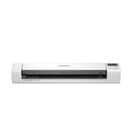
🚀 Scan smarter, anywhere — your ultra-compact mobile office essential!
The Brother DS-940DW is a compact, wireless duplex document scanner designed for busy professionals who demand speed, portability, and versatility. With 16ppm duplex scanning, embedded battery, microSD standalone mode, and broad OS compatibility, it transforms any workspace into a mobile scanning hub. Its space-saving design and seamless wireless connectivity make it perfect for remote work, small offices, or on-the-go digitization, backed by a 1-year limited warranty and free lifetime online support.


| ASIN | B083R46983 |
| Best Sellers Rank | #30,869 in Office Products ( See Top 100 in Office Products ) #35 in Document Scanners |
| Brand | Brother |
| Color Depth | 48, 24 |
| Connection Type | USB, Wi-Fi |
| Customer Reviews | 3.9 3.9 out of 5 stars (1,085) |
| Item Dimensions D x W x H | 12.56"D x 2.5"W x 1.79"H |
| Item Type Name | Mobile Scanner |
| Item Weight | 1.5 Pounds |
| Light Source Type | LED |
| Manufacturer | BROTHER |
| Media Type | USB |
| Minimum System Requirements | Windows 7 |
| Model Name | Duplex and Wireless Compact |
| Optical Sensor Technology | CIS |
| Paper Size | 8.50 x 71.97, 3.37 x 2.13, 8.27 x 11.69, 2.91 x 3.13 Inches |
| Resolution | 300 dpi |
| Scanner Type | Document, Business Card |
| Standard Sheet Capacity | 1 |
| UPC | 012502657491 |
| Unit Count | 1.0 Count |
| Warranty Description | 1-year limited warranty |
| Wattage | 4.6 watts |
B**O
Take anywhere, use without a computer.
I ordered a different model at first and it did not come with the micro sd card feature. Brother does not advertise well and their instructions are terrible. I look at a lot of websites to see what people who have bought the product are saying. The instruction did not say to fast press the on/off button to turn it on and did not say you have to press and hold the on/off button for 6 seconds and then let go to turn it off. Almost returned it because the lights were flashing and slow to respond when turning on and off. After figuring out that on and off procedure, the scanner worked flawlessly. I like the double sided scan feature and you do not need a computer if you are saving to the SD card. I bought this brand and model because on a government computer, you cannot just hook up any hardware and put in any software without getting approval from the IT department which usually do not allow anything they do not know about. You would think being part of the largest organization in the State that you would have the best of everything. The exact opposite is true. I have antique hardware and am using Microsoft 2013 which was a recent upgrade from Microsoft 2003. The lazerjet printer looks like it belongs in a museum. This scanner solved my problem. It plugs in and becomes an external drive. It scans 14 pages in 40 seconds or less. It can scan in the jpeg or pdf format. It takes up very little space on your desk and is very quiet. You can scan and save through Wi Fi, SD card, or USB cable. The utilities software is alright, not the greatest and like all other brands, they allow you a sample of the PDF software but want you to buy the full version. They make like it comes with the full version of the software but then it begs you to buy it. The only thing is that you cannot scan a page in a book. The page you are scanning has to pass through the scanner, unlike a scanner bed which will allow you to scan an open book. Not unless you rip out the page and pass it through the scanner. I use this scanner everyday at work and it is holding up very well. Legal documents, maps, timesheets, can be scanned and sent through your computer saving you a trip from your remote office to your main office saving you time, money, and gas. Especially with the price of gas today, you will be happy you purchased this scanner. Do not forget to buy the hard case to protect your scanner. I take my scanner where ever I go.
J**Y
DS-940DW microSD scanning feature DOES work!
Overall I really like the operation and convenience of the DS-940DW and I am keeping it. On Windows 10/11 the Brother iPrint&Scan app (v11.0.3.4) works well. I have used the Brother Utilities app (v2.0.7237.27636) successfully with other Brother products that I previously purchased. I was able to update my DS-940DW firmware to v1.61 using the Brother Firmware Update Tool available on support.brother.com. (Maybe your problems are caused by old firmware?) In this review, I want to cover the scan-to-microSD card feature, which I do successfully use, but on which there seems to be very little information published. First, the microSD card must be inserted into the DS-940DW upside down (i.e., gold teeth up). Attempting to force the card in the wrong way-up may damage the card. Insertion and removal may be performed safely while the DS-940DW is powered-on. Second, the microSD card must be 2 to 32GB in size and formatted with the FAT32 file system. Larger microSD cards do not work because they must be formatted using exFAT or NTFS. The DS-940DW apparently cannot read these formats, resulting in a fast-flashing card light when the microSD is inserted. Unfortunately, Amazon recommends the Sandisk 128GB microSD card for purchase with the DS-940DW, which may result in many customers believing the microSD scanning feature does not work. Third, a folder named "Brother" is automatically created on the microSD card to store all of the scanned document files. The file names are based on the serial number of the scanner, date, time, and an incrementing number. I use the Color, PDF, and 2side settings by default. Unfortunately, the microSD scanning does not create PDFs with searchable text, as PDFs created using the Brother iPrint&Scan utility can be configured to be. Finally, the microSD mode scanning will begin automatically when a page is inserted into the DS-940DW. There is no need to press the START/STOP button for each page. I really like and use the microSD mode scanning feature; I hope this information helps other DS-940DW owners find value with it as well.
E**E
It doesn’t take much space and can be stored in suitcase. Scan is fast and quality of image is good / customizable. To connect the scanner to your own WiFi. You need connect to the WiFi of the scanner, figure out the IP address of the scanner, and open that in browser, login using the password printed at the bottom, go through the wizard to connect your own WiFi. Once that is done you will be able to use it as a device part of your network. Work on Mac and Windows. It doesn’t have autofeeder but you can add additional page scan one at a time. So it is not for big jobs.
B**8
I was truly FURIOUS at first coz of extreme difficulty doing the wireless setup with my home network!! Then i finally figured out had to do the WIFI DIRECT pairing with my tablet first >> Then whilst still connected in this mode, click "Machine Settings" at bottom left-hand corner of app. Which opens up the Admin Portal in your browser. Key-in default password (indicated on label stuck under scanner) and Login. Go to "Network" tab >> "Wireless (Setup Wizard)" ... after that was a no-brainer. Just need your Wireless Network SSID credentials handy. And wish that instructions were much clearer from onset, plssse!!! Btw, after you're done with the admin portal, don't forget to change its default logon password for security!
A**R
جودة سحب الصور ممتازة والمستندات بس لازم تشبكه بالشاحن دائم لان بطاريته على طول تخلص
M**S
Excelente produto, recomendo a todos.
K**G
I bought this to replace my (printer + scanner) which is bulky and I seldom do printing. The brother scanner is light weight and compact. Scanner is easy to use and scanning speed is fast enough for my purposes.
Trustpilot
Hace 2 semanas
Hace 3 días