We remain fully operational. Our teams are working around the clock to ensure your deliveries continue safely.

Descargar la aplicación


Servicios al cliente
Sobre nosotros
Copyright © 2025 Desertcart Holdings Limited
Descargar la aplicación
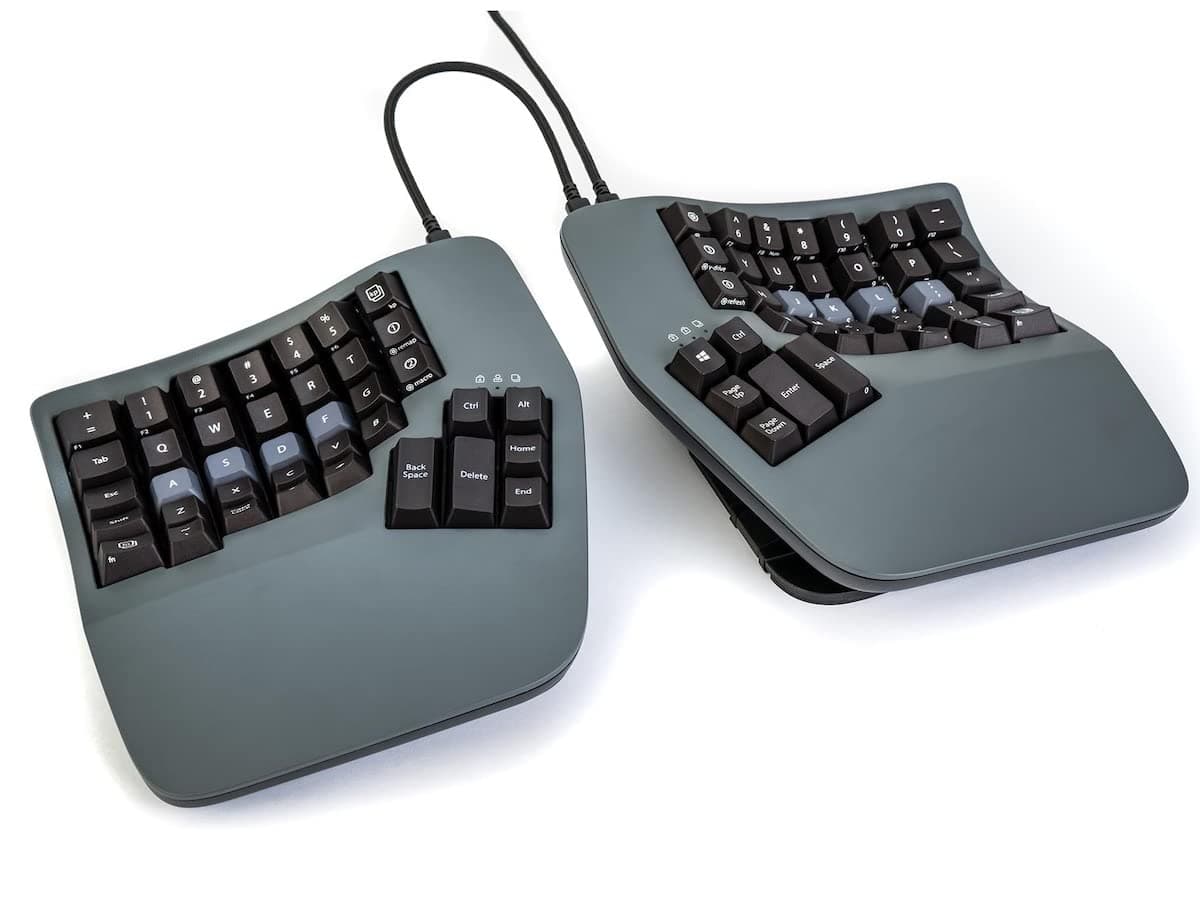
⌨️ Elevate your typing game—comfort meets precision in every keystroke.
The Kinesis Advantage360 is a premium split mechanical keyboard designed for ergonomic excellence. Featuring 76 keys arranged in vertical columns, adjustable tenting with three height settings, and tactile Gateron Brown switches, it reduces wrist and shoulder strain by promoting a natural hand posture. Its compact footprint eliminates the numeric keypad to keep your mouse within easy reach, while integrated palm supports and thumb clusters redistribute workload for enhanced comfort and efficiency. Ideal for professionals seeking to prevent repetitive strain injuries without sacrificing typing performance.


| ASIN | B0BCHFHX6V |
| Antenna Location | Office |
| Best Sellers Rank | 69,417 in Computers & Accessories ( See Top 100 in Computers & Accessories ) 1,885 in Tablet Keyboards |
| Box Contents | Bridge Connector, Extra Keycaps, Keycap Puller, USB Cable |
| Brand Name | Kinesis |
| Button Quantity | 104 |
| Colour | Dark Gray |
| Compatible Devices | PC |
| Connectivity Technology | USB-C |
| Customer Reviews | 4.4 4.4 out of 5 stars (71) |
| Enclosure Material | Polybutylene Terephthalate |
| Generation | 1st Generation |
| Global Trade Identification Number | 00607998360002 |
| Hand Orientation | Ambidextrous |
| Item Dimensions L x W x H | 38.1L x 20.3W x 7.6H centimetres |
| Item Type Name | Keyboards |
| Item Weight | 1.45 kg |
| Keyboard Backlighting Color Support | Single Color |
| Keyboard Description | Mechanical |
| Keyboard Layout | QWERTY |
| Manufacturer | Kinesis |
| Model Name | Kinesis |
| Model Number | KB360-GBR |
| Number of Keys | 76 |
| Number of Sections | 9 |
| Power Source | Corded Electric |
| Product Features | Ergonomic, Hotkeys and Media Keys, Split Keyset Design, Wrist Rest |
| Product Warranty | 3 year manufacturer |
| Series Number | 360 |
| Style Name | USB |
| Switch Type | Tactile |
| Theme | Ergonomics |
| UPC | 607998360002 |
J**S
Very well designed and ergonomic
Steep learning curve - I bought this during a flare up of tendonitis in my new job caused by having to use a latop for a week, so I can't speak yet for preventative qualities, but I also have shoulder issues from arthritis and immediately from day one I could feel my shoulders were far more relaxed. After a few weeks of use I am becoming more proficient, it starts to become easier to use as you train yourself to let more fingers share the load, and it definitely feels more natural. It is expensive, but so is being unable to work. It's that simple.
A**R
Life Saver
The keyboard might seem strange at the start and even it might look strange, but in reality, it’s one of the best keyboard I have used. I have a big collection and I could say for sure that this is my favourite and I’m gonna be using this for a long time Probably years. Now the main reason that motivated me to purchase the keyboard is the ability to sit ergonomically and have my shoulders wide open whilst not pointing inwards, but outwards did. This significantly helped with arms related pain and shoulder pain and upper back. I highly highly recommend the keyboard as it does maintain a good post and I can’t see a better alternative after months and months of research, the keyboard pricing is obviously very high, but they do have something going on
B**L
Changed my life
These keyboards are the only thing that let's me type any more. The pain otherwise is unbearable
A**R
自分のタイピングについてしまっていた、ミスタイプの原因になるくせに気が付かされます。 正しい指でタイプしないと打てない、、という配置なので、慣れるまでは時間がかかりますが、正しい共生なので、それはいいとして。 ただし、強制が終わったとしても、最速でタイプできるかというとちょっと微妙です。 特に小指でタイプするキーは、私だとかなり指を伸ばさないと届かないのできつい。 そこだけ手首を返して薬指で打つ、としてもいのですが、結構厄介。 しかも、指に若干のマヒが出ている人だと、さらにきつい。 エルゴノミックは、ユニバーサルデザインとは別の概念なんだな、、と気が付かされました。 また、それ以外のキーも、結構しっかりと打ち込まないといけないので、指に力がかかります。 1日作業していると、結構指が疲労していることに気が付きます。 高いだけあって品質はいいのですが、自分に合う最適解かというとちょっと微妙かもしれません。 小指が長い人ならいいのですが。
S**E
Points positifs : - Son poids, oui il est posé sur mon bureau et ne bougera pas de sa position, même si les touches sont massacrées de toutes forces. - La programmation avec l'application SmartSet, pouvoir re-mapper les touches des charactères spéciaux des petits doigts pour les doigts les plus habilles avec le système de couche, c'est excellence. Surtout que la configuration est sauvegardé sur le disque dure du clavier, donc on se retrouve chez soi même si l'on change d'ordi. - Les touches ortholinéaires + le setup concaves et le split, allègent les efforts pour écrire, réduisent les mouvements de bras non nécessaire, maintiennent la bonne position des poignets et bras. L'ergonomie est làlà. - Le feeling du contact avec le plastique, qui vient avec le temps, surtout quand on trouve la bonne position de main. On ne glisse pas. - La documentation, pour le re-mappage des touches, surtout que le logicielle n'est pas nécessaire. On peut le faire directement depuis les fichiers dans le disque dure du clavier. Qui, à mon avis est bien plus simple. - Le changement d'angle est solide et bien stable. - Puis le design. Points négatifs : - n'est pas hotswappable, mais bon... - ça prend quand même de la place sur son bureau, puis pour le déplacer pour le télétravail par exemple... - l'application SmartSet sur MacOs est buggy surtout pour la configuration des macros. Lorsqu'on est en mode re-mappage toutes les LEDs clignotes, on ne voit plus sur quelle couche on est; alors le clique sur la touche n'est pas toujours à celui que l'on pense... mais bon, je préfère utiliser la méthode manuelle : modifier les fichiers comme indiqué dans leur documentation, et on a vite ce que l'on veut. Les difficultés, au début, pour ce genre de clavier sont : - Les touches ortholinéaires : il faut se donner le temps, pour construire sa mémoire musculaire. Il faut juste pratiquer. Sur mon ancien clavier, ferry sweep 2, il m'a fallu 2,5 mois pour retrouver ma vitesse de croissière habituelle. Sur le kenisis, 1 semaine. - La position de sa paume de main : oui, il m' a fallu chercher un moment pour comprendre et donc trouver la position idéal. Le but dans les claviers dit ergo, est que la main elle-même ne bouge pas de sa position. Mon pouce doit toucher la touche la plus haute des touches à pouce et le petit doigt doit toucher aisément la touche la plus haute, opposée, du clavier. Cela donne la position de la paume de main. - Le split : mais bon en même temps on l'achète pour ça non ? Apprendre à taper du clavier, en utilisant la totalité de ces doigts est un game changeur ! De plus les splits keyboards, sont la garantie de ne plus avoir mal aux poigners et au coups... Conclusion : Il m'a fallu au moins une bonne semaine, le temps de retrouver mes marques pour que je puisse enfin dire. Je l'aime ce clavier.
P**K
Sehr komfortable :)
O**N
First things first - the concepts behind this keyboard are great - comfortable key wells that were a proven design with the Advantage line, split so that you have the flexibility of placing the halves at a comfortable distance apart, and tenting so that your wrists are at a more natural angle are brilliant. What befuddles me is how some details just got in the way of making this the best ergonomic keyboard ever. Just to lay the groundwork, I am a Kinesis fanboy. I have been using keyboards for nearly four decades, and about 20 years ago, I started feeling the discomfort most long-term computer users inevitably encounter in the wrists, forearms, and fingers. After using relatively cheap but effective solutions from Microsoft and Logitech, I finally found the Advantage keyboard which was an epiphany. After surviving the initial two or so weeks relearning to type with an ortholinear, welled keyboard with thumb clusters, all of my niggling hand/elbow/arm pain disappeared and I became a true disciple. I used the original Advantage for over a decade, and upgraded to the Advantage 2, keeping the original for a spare for when I need one for offsite consulting engagements. Since the Advantage and the Advantage 2 were single block keyboards, I migrated to a ZSA Moonlander I as my primary about a year ago since it was split, ortholinear, and supremely and easily customizable - you can easily hot swap keys AND switches, and the keys are also RGB, enabling custom colors that are easily programmable. Since it is a flat keyboard, it was a little less comfortable, but paired with ZSA's platform accessory for superb tenting, it was hard to beat. When Kinesis announced the 360 last year, it seemed like the perfect solution. Keeping all of the wonderfulness of the Advantage line coupled with very simple tenting and a split design had me yearning for it. Reviews were generally positive, and I was able to determine that the wired solution would work best for me - I didn't want to have to deal with charging, bluetooth, etc. so I settled for the SmartSet version rather than the wireless, and ordered it once I found availability at a relatively good price point. I was excited about its potential. The first issue I ran into was the unnatural feel of the keys. My fingers felt like they were slipping off, and my accuracy suffered. The PBT keys felt artificial and cheap. I tried different separation and orientation tactics, different levels of tenting, and different table heights. It just didn't feel right. I compared it to the feel of my old Advantage 2 - it felt so comfortable compared to the 360. One of the reasons it felt comfortable seemed to be cupped home keys of the Advantage 2. So, on a lark, I swapped the home keys on the spare Advantage with the PBT home keys on the 360, and voila, the feel issue disappeared. Users who are first time Kinesis users are likely never encounter this situation, but I definitely felt it. With the old cupped keys, the 360 feels great. The second issue is the length of the cord that connects the two split halves. The cord is 10 inches long, but because you have to curve it to insert the USB-C connectors on both halves, you effectively get a 6 inch maximum separation, which limits possibilities. The Moonlander has a long cord that connects its halves and does not have this limitation. I guess for most, 6 inches is enough, but there have been times when I have separated the keyboard halves on the Moonlander by nearly 20 inches comfortably. The third issue has to do with the indicator lights just above the thumb clusters. I have noticed from time to time that the RHS lights don't come on as expected. Disconnecting and reconnecting the keyboard usually fixes that, but it shouldn't be happening in a keyboard this expensive. I'll continue to keep an eye on it to see if there is a pattern to the issue, and I'll reach out to tech support if it continues. The final recommendation to make this keyboard pop is to get the wrist rests. Some YouTube reviewers have indicated that they aren't necessary, and they are not required. But your hand positioning is far enhanced with them on. IMHO, they should have been included with the package, considering the cost of the unit, but it is what it is. So, Kinesis, if you're listening, add the cupped keys to the home keys, provide a larger connecting cable for the halves, and consider including the wrists wrests by default. Also, you could take some notes from ZSA who have taken user-friendly customization to a new level - would help make this good product great.
J**O
I bought the Advantage360 to upgrade my Kinesis Advantage2. I bought the wired version, and the hardware and build quality are fantastic. I haven't had any connection problems (not that I'd expect them with USB). The cable linking the halves was on the short side, but I haven't had any problems swapping in a longer one. At first I was disappointed by the lack of function keys, but it's not too bad in practice. I had to remap some custom shortcut s because they were inconvenient with an extra key, but overall I like the trade-off. Function keys on the Kinesis2 weren't great, and I always had problems hitting them in the dark. One annoyance is the (apparent) lack of a Pause-Break key. I know it's not popular, but it wouldn't have hurt to hide it away as a combo with Fn. Maybe it is, but I don't see it mentioned in the manual or online anywhere. The new placement of Esc was also annoying, but I got used to it eventually. Update: After a few more months, I'm tempted to drop it to 3 stars, but think I'll keep it at 4 for now. Anyway, the problem I ran into has to do with macro playback. The default speed is just too slow for me. In this case, I was writing a macro (Fn-P) to toggle paredit-mode in Emacs. Recording was easy enough, but the default speed is so slow that it's faster to just type in "alt x paredit-mode" by hand - otherwise I'm stopping to *watch* the characters appear, which is kind of silly and counter productive. I'm on Linux and don't have SmartSet installed, so I needed to edit the layout files on the built-in vDrive to change the playback speed. It seemed straightforward, but the documentation isn't great, and the implementation seems buggy. The Direct Programming Guide, for example, never bothers to mention that you need to Refresh before any changes take effect, and at one point my macro was playing back each character 3 times *very* slowly. A lot of times refreshing just doesn't seem to do anything. I eventually got it working, but it felt lucky more than anything.
Trustpilot
Hace 5 días
Hace 2 meses