We remain fully operational. Our teams are working around the clock to ensure your deliveries continue safely.
Descargar la aplicación


Servicios al cliente
Sobre nosotros
Copyright © 2025 Desertcart Holdings Limited
Descargar la aplicación
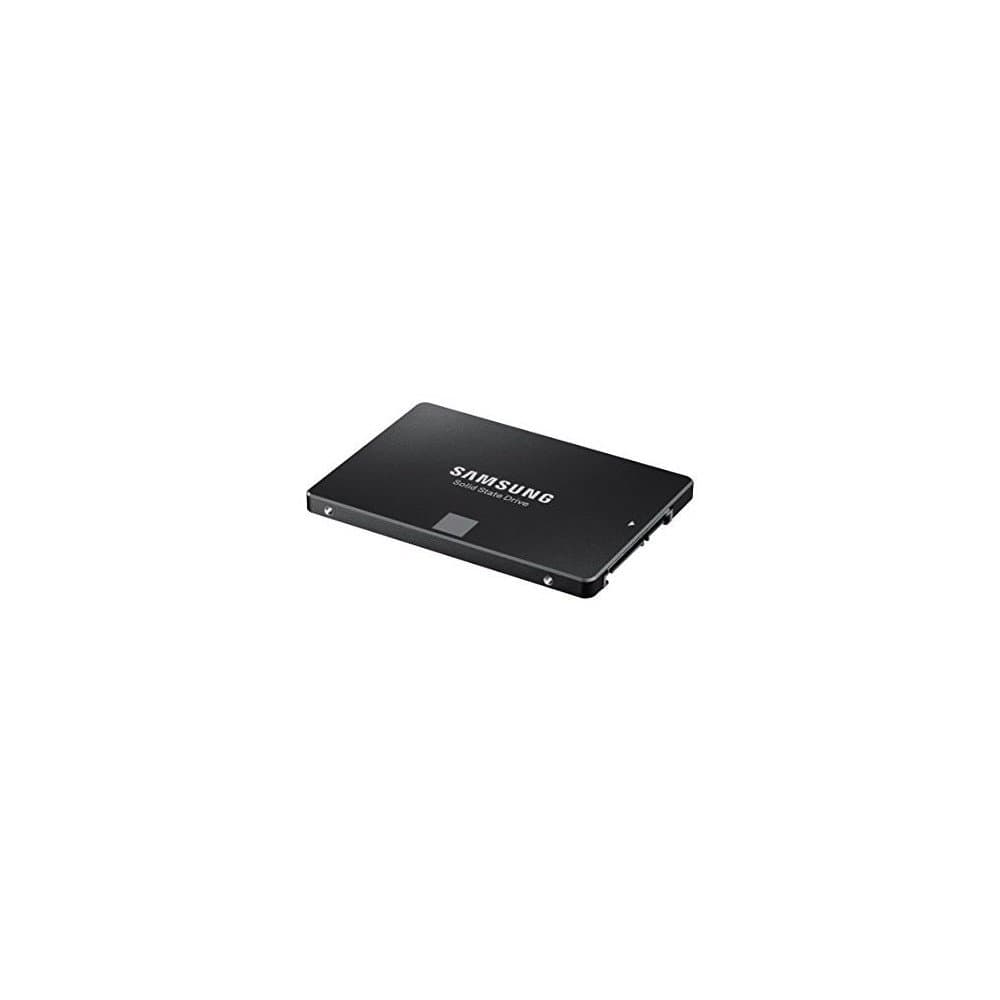



🚀 Upgrade to the SSD that powers your productivity and locks down your data in style!
The Samsung 850 EVO 500GB 2.5-inch SSD leverages cutting-edge 3D V-NAND technology to deliver blazing fast read/write speeds (up to 540/520 MB/s), enhanced endurance with a 5-year warranty, and advanced AES 256-bit hardware encryption. Its Dynamic Thermal Guard ensures optimal operating temperatures, while RAPID mode and in-house component integration maximize performance and energy efficiency, making it the ultimate upgrade for professionals seeking speed, security, and reliability.


| ASIN | B00P73B1E4 |
| Best Sellers Rank | 67,141 in Computers & Accessories ( See Top 100 in Computers & Accessories ) 370 in Internal Solid State Drives |
| Box Contents | Solid State Drive |
| Brand Name | Samsung |
| Cache Memory Installed Size | 512 |
| Color | Black |
| Compatible Devices | Desktop |
| Customer Package Type | FFP |
| Customer Reviews | 4.7 4.7 out of 5 stars (14,094) |
| Data Transfer Rate | 750 Megabytes Per Second |
| Digital Storage Capacity | 500 GB |
| Enclosure Material | Flash Memory |
| Form Factor | 2.5-inch |
| Global Trade Identification Number | 04053162537590, 04056203064819, 08806086523035, 08809321845657 |
| Hard Disk Description | Solid State Drive |
| Hard Disk Form Factor | 2.5 Inches |
| Hard Disk Interface | Serial ATA-600 |
| Hard-Drive Size | 500 GB |
| Hardware Connectivity | SATA 6.0 Gb/s |
| Installation Type | Internal Hard Drive |
| Item Dimensions L x W x Thickness | 6.4L x 6.4W x 6.4Th centimetres |
| Item Weight | 45 Grams |
| Manufacturer | Samsung |
| Media Speed | 300 |
| Model Name | MZ-75E500B_ 850 EVO |
| Model Number | MZ-75E500B/EU |
| Network Connectivity Technology | SATA |
| Number of Items | 1 |
| Product Features | Internal^Operating temperature range:0 - 70 °C^S.M.A.R.T support^Security algorithms:256-bit AES^TRIM support |
| Product Warranty | 12 months |
| Read Speed | 540 Megabytes Per Second |
| Specific Uses For Product | Gaming, Business, Multimedia, Personal |
| UPC | 723856121971 758399113213 |
| Unit Count | 1.0 Count |
J**N
You'll never go back to a hard drive and you'll only ever buy Samsung again!
I've been using SSDs for years now and once you've used one you can never go back to having a hard drive as your boot drive. I paid £160 for my first SSD which was a 128GB Crucial M4 in October 2011 and since then I've used lots of other SSDs in personal and client builds from SanDisk, OCZ and Samsung mainly. I bought the M4 because at the time it was one of the fastest drives available and crucially it had one of the most stable SATA controllers, which was important at the time because a lot of drives had fairly unstable controllers and often caused a lot of problems such as blue screens of death and system crashes. A few years later and after having used SanDisk and OCZ SSDs, the Samsung SSDs had become extremely popular especially when the 840 was launched in 2013 or 2014. I bought my first Samsung SSD in July 2014 to replace the SSHD that I bought for my ThinkPad which was an 840 EVO 250GB and since then I have only bought and recommended Samsung SSDs. After that I bought an 850 Pro 256GB for a build I did in November 2014, then an 850 EVO 250GB in March 2015 to replace the 128GB OCZ Vertex 4 in my desktop and recently this 850 EVO 500GB to replace that 840 I had in there previously. I used to be very active on an online forum and I've recommended these 850 drives to hundreds of people and I've never had anybody come back and say the drive failed or that they were disappointed with it. The 850 is a truly stellar drive - well-priced, fast and easy to setup. The chances are that you'll buy one Samsung SSD and then only buy them without looking at the other brands. The speed is great. This is probably the fastest SATA SSD on the market, when used on a SATA 6GBps connection you're pretty much guaranteed to get at least 500 MB/s read and write speeds with this drive. These drives were and still are exceptionally popular with members on the forum I used to post on and most people on there were able to get between 500 and 550 MB/s read and writes with these. For comparison's sake, the Crucial M4 I bought in 2011 achieved around 400 MB/s read and write and the OCZ Vertex 4 I purchased in February 2013 when it was the fastest drive available could achieve around 450 MB/s read and write, so for those upgrading from an older SSD this is a little bit faster. Most desktop boards manufactured since 2012 will have SATA 6GBps and most laptops made since 2012 or 13 will also have SATA 6GBps, but even on the older SATA 3GBps connection you're likely to achieve around 250-300 MB/s read and writes which is reasonable. Those upgrading from hard drives will notice a huge difference. A 5400 RPM disk usually found in laptops typically reads and writes between 90 and 110 MB/s and a good 7200 RPM disk typically reads and writes between 120 and 150 MB/s. An SSD like this is the best single upgrade you can do to increase general performance of your system and it's fantastic that these days it can be done quite cheaply - certainly a lot cheaper than it was in 2011 when I first bought an SSD. If you plan to stripe two of these in a RAID-0 configuration you're likely to get around 1GB/s read and write with these drives. Several users on the forum had these in RAID-0 and got these kind of speeds. I've presently got the 250GB 840 EVO and 250GB 850 EVO in a RAID-0 stripe set in my desktop and I get something like 1GB/s read and 990 MB/s write. The 840 and 850 are so similar that you can quite happily stripe them and the two drives typically get 500 MB/s read and write speeds in single drive configurations so you won't be losing performance by doing so. The speed is of course phenomenal but for day-to-day use I can't really see the difference between one and two of these drives, but for things like writing Adobe Media Cache and copying files there is a benefit to using RAID-0 on these drives. Of course, the benefits of this SSD are the same as using any other SSD. Compared to a hard drive everything is instantaneous, everything loads faster and the speed of your OS in general just improves dramatically. You'll never go back! You actually won't be able to, the speed of an HDD will drive you mad if you go back to having an OS installed on your HDD. In a laptop it can improve the battery life too, but I didn't really notice this when I replaced the SSHD in my ThinkPad with the 840. Speaking of SSHDs, if you're thinking about an SSHD instead of a large SSD like this because it's cheaper then think again. I had a 1TB SSHD, of which only 8GB was solid state storage for operating system cache, which meant that the OS would cache files to the 8GB solid state storage so it would boot and shut down quickly. but programs were ran from what was essentially a 5400 RPM HDD and the OS ran as if it were on a 5400 RPM HDD, so the benefits of the SSHD were minimal and it died on me after only a few months, luckily by which point I had replaced it with an SSD. When I bought my 128GB Crucial M4 a 500GB drive like this was way out of most people's reach - it would probably have cost close to £1,000. Even a 256GB SSD was out of most people's price brackets, but now with a 500GB drive costing around £140 and a 250GB drive costing about half that, there's no reason to buy an SSHD really especially if you own a desktop computer and can have a large hard drive to store data on. Even if this is your only drive, 500GB is probably big enough for you. Who really has more than 500GB of data? So, you'll never go back to having a hard drive as your boot drive and you'll also only buy Samsung SSDs after you've bought one.
M**.
A great drive that will boost your PC performance. Additional info below...
Being the kind of person that spends a ridiculous amount of time researching tech before parting with my money, I am very happy with this drive. When you purchase a SSD, you need to keep a few things in mind. If you need to store around 200gb, then a 250gb drive will not do and you will need 500gb. Always aim to have double the space required. These are not like traditional hard drives. The fuller the drive, the more of a performance hit you get. Don't get me wrong, even with the performance hit, it will still make your old HDD feel like a waste of space, but if you are shelling out the money, then why not get the benefits. Once the drive is installed and configured correctly (using the Samsung Magician tool), you will end up with a usable partition of around 420gb. This is down to a couple of things. The first is your OS. Windows will kindly snatch around 33gb for things like FAT tables, hidden partitions and the obligatory space conversion (you know, the one where a gigabyte is not actually a gigabyte - this is the same on all drives, HDD and SSD). Samsung will then recommend a 10% buffer to help maximise life and performance. This is obviously optional and the percentage can be configured. At this point you may be thinking "what a rip off". It's just the way it is unfortunately. The thing you have to remember is that you may still be able to use your old HDD to store files. The benefits of SSD are mostly felt when booting and loading applications (unless you are loading large files - say 50gb+, in which case storing these on there would be good as well), so using your SSD to contain your OS and frequently used applications is where you will really see the difference. All your files (photos, music, etc..) can sit on your old drive. If you are installing into a PC then keeping both drives should be easy. If you are installing into a laptop, then some laptops will allow 2 drives and the ones that don't, you could see if there is a optical drive bay replacement. This is basically an adapter that you can use to hold a 2.5" drive where the CD/DVD drive goes (lets face it, those CD/DVD drives are being used less and less). Alternatively, you could buy an external drive bay and stick your old drive in that (this is available for both PC and Laptop). Things to note: If you are installing into a PC, you will probably need a 2.5" to 3.5" mounting bracket (unless your chassis has an area for mounting 2.5" drives). If you are planning to keep your old drive, then you will need to purchase an additional SATA3 cable for your new SSD. This drive only comes with the drive and software. You do not get screws, USB adapter (used to migrate data in accordance with the instructions) or fancy stickers. The instructions state to use the USB adapter if you are using the partition migration software (supplied), but this is not the only way to do this (unless you are looking to migrate your partition on a laptop). I would always recommend installing your OS as a clean install in situations like this. To do this, install the SSD into your PC ensuring that you have connected it to the SATA-1 port and moved your old drive to the SATA-2 port (the number is just the port number and does not dictate the SATA version so don't just go and plug it into the SATA-3 port because the drive is SATA3). Leave your old drive in place but unplug the power cable (the larger of the two). Check to make sure your bios is set to the correct drive mode. Install your OS from either a bootable USB key or CD depending on what your have (if you are using Windows 10, then you can create a bootable USB key using the Microsoft Windows 10 Media Creation Tool downloadable from Microsoft). Once your OS is installed, shut down and reconnect the power to your old drive and switch back on. You should now be able to move your old files to your SSD. Once you are happy that you have everything you need from your old drive, you can remove all the partitions off it (using EaseUS Parition Master Free Edition) and then create a new partition that will allow you to use the whole drive for storing your files and data. If you are really sure you want to just migrate the partition, then you can use the software provided. You will need to google any further information on how to accomplish this. I cannot state enough how important it is that you back up your files. This is not something that should be done just for this task, but should be done always. Cloud backup storage is ridiculously cheap now with services like Amazon S3 and software like CloudBerry Desktop Backup, so there is no excuse! Remember, you may be able to download all your music collection again, but you can't replace all those photos! Backing up 25gb will set you back about 20p per month for storage. That's probably less than the value of those copper coins you hate receiving so much.
C**C
Vor ca. 3 Jahren habe ich unsere Laptops mit unterschiedlichen SSD aufgerüstet: - eine riesige Intel in dem Toshiba Qosmio mit Intel i-7-Prozessor und 16 GB RAM - eine Samsung 840 PRO mit rd. 500 GB i dem Asus N56V, ebenfalls mit Intel i-7 - 2 oder 3 andere Samsung mit 256 GB in einem Medion Akoya und zwei Toshiba Satellite, die wenig benutzt werden. Generell würden die Rechner enorm schnell, so bootet z.B. den Qosmio mit Windows 7 in weniger als 45 Sekunden mit SSD und braucht um 3 Minuten wenn er von der Toshiba 1TB HDD hochfährt. Allerdings hat die sehr teuere Intel SSD nach ca. 2,5 Jahre schlapp gemacht und ich habe sie jetzt durch diese 850 EVO mit rd. 500 GB ersetzt. Auch die Software wie MS Office, Corel Draw oder PaintShop Pro X8 wird ohne Wartezeit geladen. Ohne SSD dauert es bei Corel bis zu fast 10 Sekunden. Man muß natürlich sagen, dass die Toshiba 1 TB HDD nicht die schnellste und daher kein Referenz für einen Vergleich ist. Ähnliche Erfahrungen habe ich mit dem Asus N56V gemacht. Hier erscheint der Windows Desktop mit allen Ikonen nach ca. 15 Sekunden und nach weiteren 10 Sekunden ist alles betriebsbereit. ------------------------ PRO oder EVO Die Samsung PRO läuft jetzt seit ca. 2,5 Jahre täglich absout einwandfrei und die gestrige Prüfung mit der Software Magician zeigte einen guten Zustand. Sie hat auch 10 Jahre Garantie, die halb so teuere EVO dagegen nur halb so lange. Trotzdem habe ich mich beim Ersetzen der defekten Intel SSD im Toshiba Qosmio für die preiswertere Samsung EVO entschieden, weil der Laptop bereits 3 Jahre alt ist und ich brauche keine Festplatte, die garantiert 10 Jahre läuft für den doppelten Preis. --------------------------------------------------- SSD EVO mit 500 GB ab 108 Euro, NEBENKOSTEN Für diese 850 EVO mit ca. 500 GB habe ich regulär bei Amazon 138 Euro mit Prime Versand ausgegeben. Eigentlich kann man eine SSD selber einbauen und konfigurieren. Man muß aber in der Beschreibung darauf achten, dass die Migrations-Software dabei ist. Bevor ich mich stundenlang Kenntnisse über Bootsektoren und -Software aneigne, die ich nie wieder brauchen werde und Notebooks mit labile Plastik-Abdeckungen auseinander schraube, lasse ich lieber Fachleute ran, die das jeden Tag machen. Den Einbau, die Migration der Software von der klassischen Festplatte und eine komplette Hardware-Reinigung durch einen lokalen Dienstleistler schlagen mit weiteren 80 Euro zu Buche wobei der Laptop Nachmittags abgehohlt und am nächsten Morgen zurückgebracht wurde. Ohne Express-Service kostet diese Leistung inkl. Reinigung i.d.R. um die 60 Euro bzw. um die 50 Euro ohne Reinigung. Ich würde bei der Gelegenheit eine Reinigung für jeden Laptop, der länger als 6 Monaten im Betrieb ist, empfehlen, weil man glaubt es nicht, wieviel Staub ich im Innere ansammelt und die Kühlung beeinträchtigt. .Mein Qosmio hatte sich vor diesen Umbau wegen Überhitzung abgeschaltet. Daher bietet den Einbau einer SSD eine gute Gelegenheit für eine gründliche Reinigung von Innen. --------------------------- SELBSTEINBAU ? WAS BEI EINER NEUINSTALLATION ZU BEACHTEN IST ! Eine Festplatte zu ersetzen ist total einfach: Alte rausziehen, neue reinstecken. Das Problem ist eher den Zugang zum Steckplatz, weil manchmal gibt es keinen Deckel sondern das Ganze Gerät auseinander genommen werden muss. In dem Fall würde ich es persönlich nicht riskieren. Bei der Software-Überspielung braucht man eine spezielle Migrations-Software, die nicht immer mitgeliefert wird. Daher Beschreibung sorgfältig lesen. Am einfachsten geht es, wenn man vom Hersteller Installations-DVDs hat und alles auf die SSD neu instaliert. Bei Toshiba kann man z.B. für rd. 30 Euro einen kompletten DVD-Satz für sein Gerät bestellen. Der hilft auch wenn die Festplatte irgendwann den Geist aufgibt um eine komplette Neuinstallation durchzuführen. Ich habe solche Sätze vorsichtshalber für unsere drei Toshiba im Schrank, nur für den Fall... Auch wenn man sein Laptop verkauft kann man ihn damit im Neuzustand zurück versetzen. Der Einbau einer SSD ist eine gute Gelegenheit eine komplette Software-Reinigung durchzuführen. Mein Qosmio war nach Jahren vollkommen überladen mit Dutzende mehr oder weniger sinnlose Software und das machte sich im täglichen Betrieb negativ bemerkbar. Eine komplette Neuinstallation auf die neue SSD vom DVD-Laufwerk aus ist eine gute Gelegenheit reinen Tisch zu machen und den Rechner zu bereinigen. Danach läuft er erstaunlich flotter und stabiler ! Man muß lediglich das Passwort für den W-LAN und die Lizenz-Nr. bereithalten und viel, viel, Zeit ... weil Windows 2-3 Tagelang ständig neu startet und Unmengen Updates herunterlädt und installiert. Auch sollte man vorher möglichst viel Software bei bestehede Internetverbidung desinstallieren. Vieles von Microsoft wie z.B. Publisher darf nur einmal installiert werden und man hat u.U. umsonst bezahlt, da hilft keine Hotline oder e-mail. Das gilt auch z.B. für den BluRay-Player von Mac für Windows oder die Anti-Vren Multi-Lizensen von f-secure, sie müssen erstmal online abemeldet werden, wenn man sie auf die neue SSD-Festplatte erneut verwenden möchte. ------------------------------------------------------------------------------ DIE GÜNSTIGSTE SSD mit 500 GB FÜR z.Z. 109 EURO Nun habe ich 2 weiteren SSD Samsung 750 EVO mit 500 GB für 108,69 Euro / Stück als Blitzangebot bestellt um weitere Laptops umzurüsten. Das ist sehr günstig und damit werden die Rechner in etwa doppelt so schnell sein, selbst ein Aldi-Laptop für wenige hundert Euro wird damit richtig flott. ------------------------ HALTBARKEIT Nach 2-3 Jahren Erfahrungen mit 4 SSDs erscheinen mir persönlich die Samsung PRO und EVO als zuverlässiger und preiswerter als die teuere Intel. Sie werden auch durch die Fachpresse ebenfalls sehr positiv beurteilt, wobei es ebenfalls andere gute Fabrikate woanders gibt (Sandisk, Toshiba, Crucial, Plextor, Kingston...) Die PRO 500 GB läuft nach über 2 Jahren täglichen Einsatz wie am Ersten Tag. Die EVO auch, aber da die entsprechende Geräte (Medion, Acer, 2 Toshiba Satelitte) viel seltener gebraucht wurden, kann ich das nicht wirklich vergleichen und beurteilen. Fundierte und aktuelle Informationen, Hintergrundwissen, Tests und Tipps findet man z.Z. u.a. bei pcgameshardware.de --------------------------------- WELCHE GRÖSSE ? Bei der Grösse habe ich mich prinzipiell auf 500 GB festgelegt, weil die Software (Windows-Betriebssystem, umfangreiche Bildbearbeitung,.Videoschnitt, Office-Paket und ein Dutzend Utilities z.B. um BluRay abzuspielen etc.) zwischen 90 und 140 GB - je nach Laptop und Windows-Version belegen. Dazu sollte man noch reichlich Platz für Wiederherstellung / Sicherungen, Dateien (auch Videos) und Oversizing budgetieren und 256 GB könnte knapp werden..Eigentlich sind 256 GB ausreichend, aber 500 GB-SSDs sind pro GB meistens etwas günstiger, kosten nur ein Paar Scheinschen mehr, sind etwas scheller und bieten massig Reserven. Daher wäre das meine Empfehlung, egal ob der Laptop ein oder zwei Plätze für 2,5-Zoll-Festplatten bietet. ----------------------------- PREIS-LEISTUNG Die aktuellen Preisen zwischen 110 und 140 Euro für eine 500GB-SSD finde ich recht akzeptabel, Preise über 400 Euro für eine 1 TB-SSD finde ich abschreckend und absolut nicht notwendig. Mit 500 GB hat man mehr als genug für Betriebssystem, Software, Sicherungen / Wiederherstellung und jede Menge Dateien in der aktuellen Bearbeitung, auch Videos in 4K-Qualität. Alles was fertig ist kann man in kassischen HDD-Festplatten archivieren, 1TB-Grössen kosten inzwischen unter 100 Euro, es macht einfach keinen Sinn schneller und teuerer SSD-Speicher für bereits bearbeiteten Dateien bereitzustellen. Daher stellt die 500 GB-Grösse m.E. das optimale Preis-Leistungs-Verhältnis. Er liegt auch z.Z. (Sommer 2016) bie 28 cents pro GB. Hinzu kommt, dass SSDs ab 500 GB mehr Chips und bessere Controller haben und schneller sind als die kleineren Modellen. ----------------------------------------------- PARTITIONIEREN ODER NICHT ? Früher habe ich die SSDs in C: für die Software und D: für die Dateien partitionniert. Das mache ich jetzt nicht mehr, weil das schon eine Einschränkung, z.B. beim Schneiden von grossen Video-Dateien, oder wenn ich verschiedenen Versionen installieren oder testen möchte, ist. Stattdessen bearbeite ich alles in C: und auslagere die fertige Datei in D: bzw. eine klassische, interne Festplatte mit 1 TB. --------------------------------------------- ARBEITSTEILUNG SSD / HDD Schließlich benutze ich neben der Auslagerung auf interne HDDs noch eine kleine Seagate Expansion Portable Drive mit 2 TB als Datensicherung. Diese Festplatte, ist völlig unkompliziert und zuverlässig und enorm preiswert. Mit der Auslagerung auf eine interne HDD und Datensicherung auf eine externe, preiswerte HDD 2 TB ist die bzw. sind die SSDs mit 500 GB ausschliesslich dazu da, das zu tun, was sie am Besten können, nämlich dafür zu sorgen, dass die Rechner optimal und ausserordentlich schnell arbeiten, und das für eine sehr geringe Investition von knapp über 100 Euro pro Rechner. ------------------- FAZIT Es gibt verschiedene, aber wenige Möglichkeiten einen Rechner / Notebook zu tunen, z.B. den Arbeitsspeicher zu verdoppeln. Aber keine macht sich so krass bemerkbar wie den Einbau einer SSD als C:-Festplatte. Andere wie den Anschluß eines externen BluRay-Laufwerk mögen noch etwas bringen, aber alles andere wie schnelleren Prozessor (mit Hitzeprobleme), Display, Grafikchip usw. ist praktisch ausgeschlossen. Insofern sehe ich das als die einzige sinnvolle Ausgabe ohne gleich ein neues Gerät anzuschaffen. Ich würde diese SSDs wieder kaufen und einem Freund mit gutem Gewissen empfehlen.
C**A
Met expectations. Great product and price point (price is time dependant - so at that point int time the price point was good)
C**N
extra
�**O
Edito: tengo dos y siguen funcionando perfectamente desde hace 3 años! ------------------------ Lo uso en Mac, con una caja externa que he adquirido de Inatek (poned en el buscador B00DW374W4), la de plástico con el botón on/off. Además, lo hago a través de un Hub USB 3.0 de Aukey (en buscador B00KR2I35A) porque me quedo sin puertos en el Mac. Ideal si trabajas con vídeo y archivos muy pesados. Como podéis ver en la foto que he subido, la velocidad que alcanza en disco externo es fantástica (412 MB/s escritura y 429 MB/s lectura) y Samsung entrega en este modelo 5 años de garantía. Ahora mismo en relación calidad-precio diría que mejora al anterior 840 EVO (con 3 años garantía), ya que el 850 EVO garantiza una vida útil mayor, lo que a la larga es lo que importa sobre todo si le das mucho uso y no quieres irte a un modelo superior (850 PRO). Lo más de lo más ahora es el 960 PRO NVME: http://amzn.to/2DyIwr4
©**�
Offerta davvero da non lasciarsi scappare quella di oggi che vede protagonista l'SSD Samsung 850 EVO nel taglio da ben 500GB. Si tratta di uno dei migliori drive allo stato solido presenti sul mercato e che rapporto qualità prezzo non ha praticamente competitor. Consigliato per praticamente qualunque portatile, ultrabook, PC fisso o altro Con il sistema operativo installato, con vari programmi installati, e con 4 o 5 giochi, lo spazio libero a disposizione mi rimane di circa 100/120GB. I giochi di ultima generazione tendono ad essere veramente enormi in termini di spazio di archiviazione, alcuni, occupano anche fino a 60GB se non oltre per un singolo gioco. Tra tutti gli SSD del taglio di 500GB, il Samsung 850 EVO 500GB è il più “gettonato”. Oltre ad essere un SSD veramente molto veloce, offre anche un ottimo rapporto tra qualità e prezzo. Non starò di certo a spiegarvi perché è meglio passare da un hard-disk standard ad un SSD, questo lo sappiamo tutti, l’SSD è mostruosamente più veloce, non fa rumore e ha consumi energetici molto più ridotti. Il Samsung 850 EVO 500GB è un SSD che utilizza l’interfaccia SATA III a 6GB al secondo. Un SSD estremamente veloce grazie alla sua modalità RAPID che aumenta in modo significativo la velocità di lettura e di scrittura facendo leva sulle risorse di sistema all’interno della CPU e della DRAM installata sul computer. Questa modalità deve essere abilitata tramite il software Samsung Magician. L’SSD dispone anche di una protezione termica dinamica che proteggere l’SSD dal surriscaldamento in situazioni estreme. L’AES a 256-bit e il TCG Opal sono sistemi di crittografia hardware dei dati che consente di proteggerli contro gli attacchi hacker. Anche questi sistemi di crittografia devono essere attivati nel software Samsung Magician.Questo SSD della Samsung è in grado di offrire un’altissima velocità di lettura e di scrittura senza compromettere l’affidabilità. Se volete installare questo SSD della Samsung sul vostro portatile, oltre alle prestazioni, avremo anche un miglioramento nella durata della batteria molto consistente. Il consumo energetico di questo SSD è di soli 4,7W, mentre in modalità standby arriva solo a 0,5W. Per quanto riguarda le prestazioni, testando un SSD Samsung 850 EVO 500GB con il software CrystalDiskMark otteniamo i risultati in foto.Se si decide di passare da un hard-disk ad un SSD Samsung 850 EVO, si noterà un enorme miglioramento in termini di prestazioni nell’utilizzo delle applicazioni. Il sistema operativo si caricherà in pochissimi secondi. Considerate che un hard-disk standard ha una velocità di lettura e di scrittura notevolmente più bassa. nella seconda foto un esempio facendo lo stesso test su un hard-disk standard Le prestazioni tra un hard-disk standard in confronto ad un SSD Samsung 850 EVO sono davvero notevoli, per quanto riguarda le specifiche tecniche di questo SSD dichiarate da Samsung: Modello: Samsung MZ-75E500B/EU Fattore di forma: 2,5″ Tecnologia: V-NAND Velocità di lettura sequenziale: 540 MB/s Velocità di scrittura sequenziale: 520 MB/s Supporto crittografia: AES a 256 Bit Memoria cache: DDR3 a basso consumo da 512 MB Samsung Peso: 55 grammi Affidabilità (MTBF): 1,5 milioni di ore Garanzia: 5 anni (Del produttore) Tenendo conto dell’ottimo rapporto tra qualità e prezzo, il Samsung 850 EVO da 500GB è un ottima soluzione. Con uno spazio di archiviazione da 500GB offerti da un SSD ad altissime prestazioni di lettura e di scrittura possiamo fare un ottimo upgrade del nostro PC o del nostro notebook. Inoltre, dobbiamo anche tenere conto del suo bassissimo consumo energetico che su un portatile ne aumenta e di molto non solo le prestazioni ma anche la durata della batteria. Anche l’affidabilità e la prospettiva di vita di questo dispositivo SSD della Samsung è notevolmente più alta di un hard-disk standard. Se teniamo conto di tutti questi fattori, il prezzo di questo SSD è del tutto giustificato. Se cercate un ottimo SSD per fare un upgrade del vostro PC o del vostro portatile, il Samsung 850 EVO 500GB è davvero molto consigliato.
Trustpilot
Hace 3 semanas
Hace 1 día