🚀 Upgrade your workflow — because speed waits for no one!
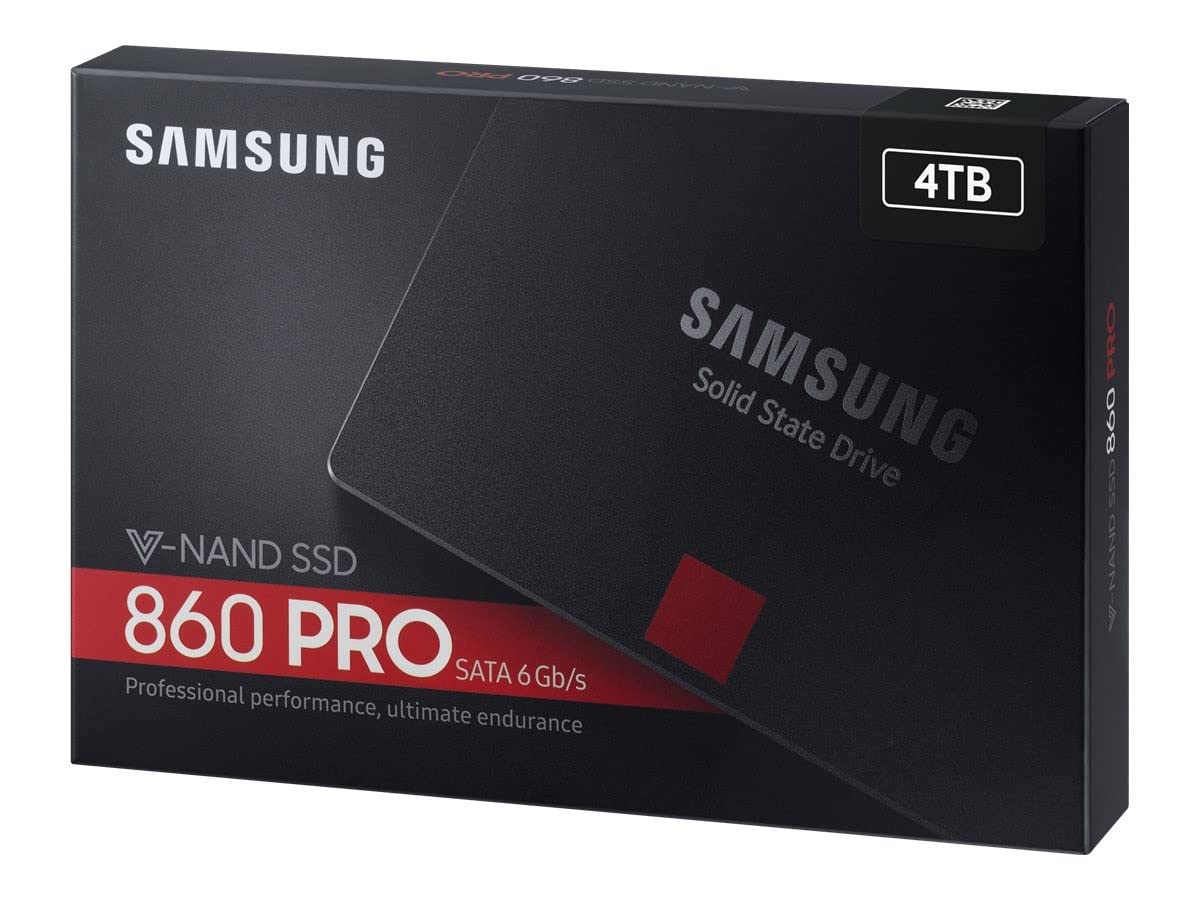
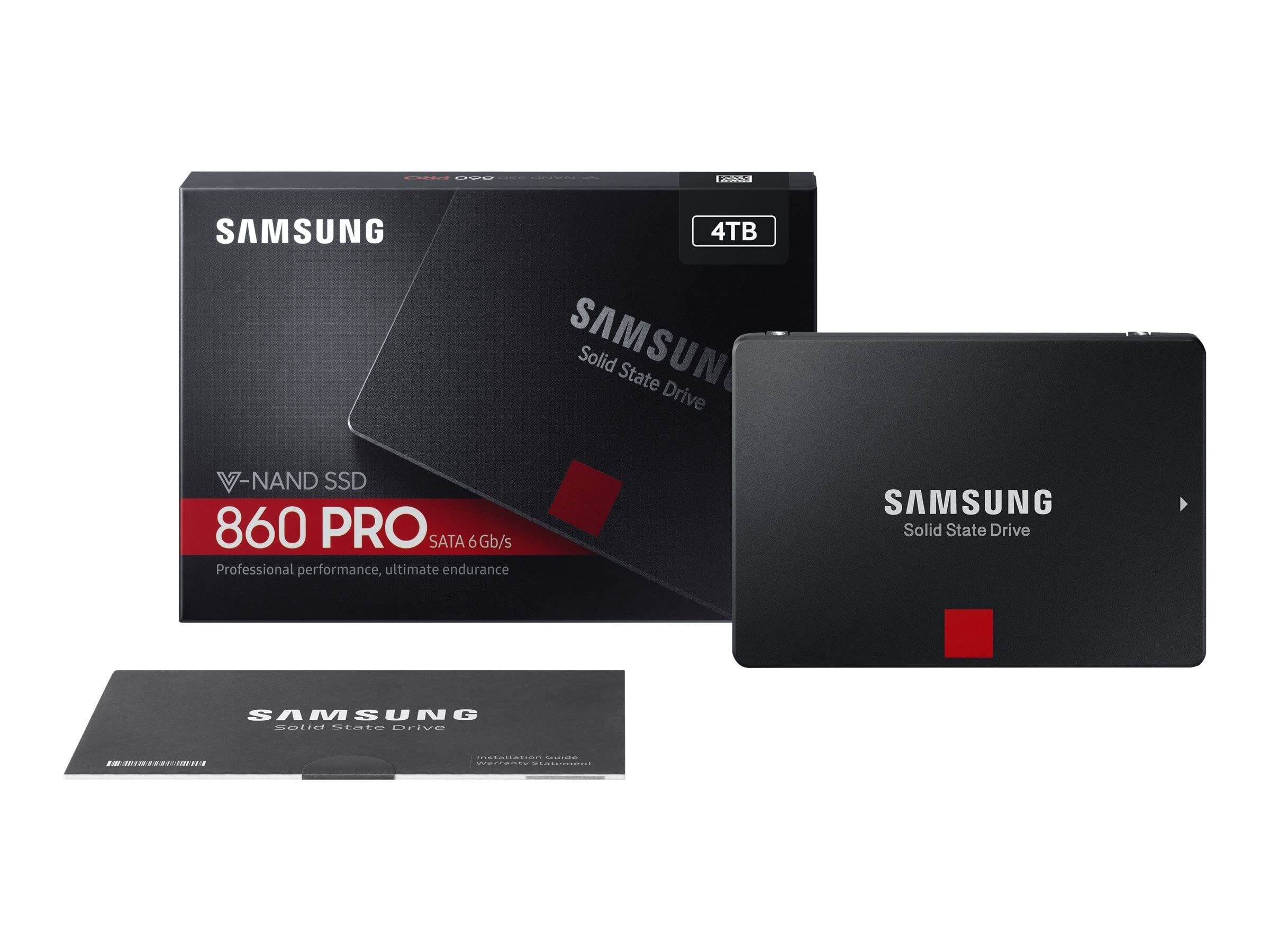
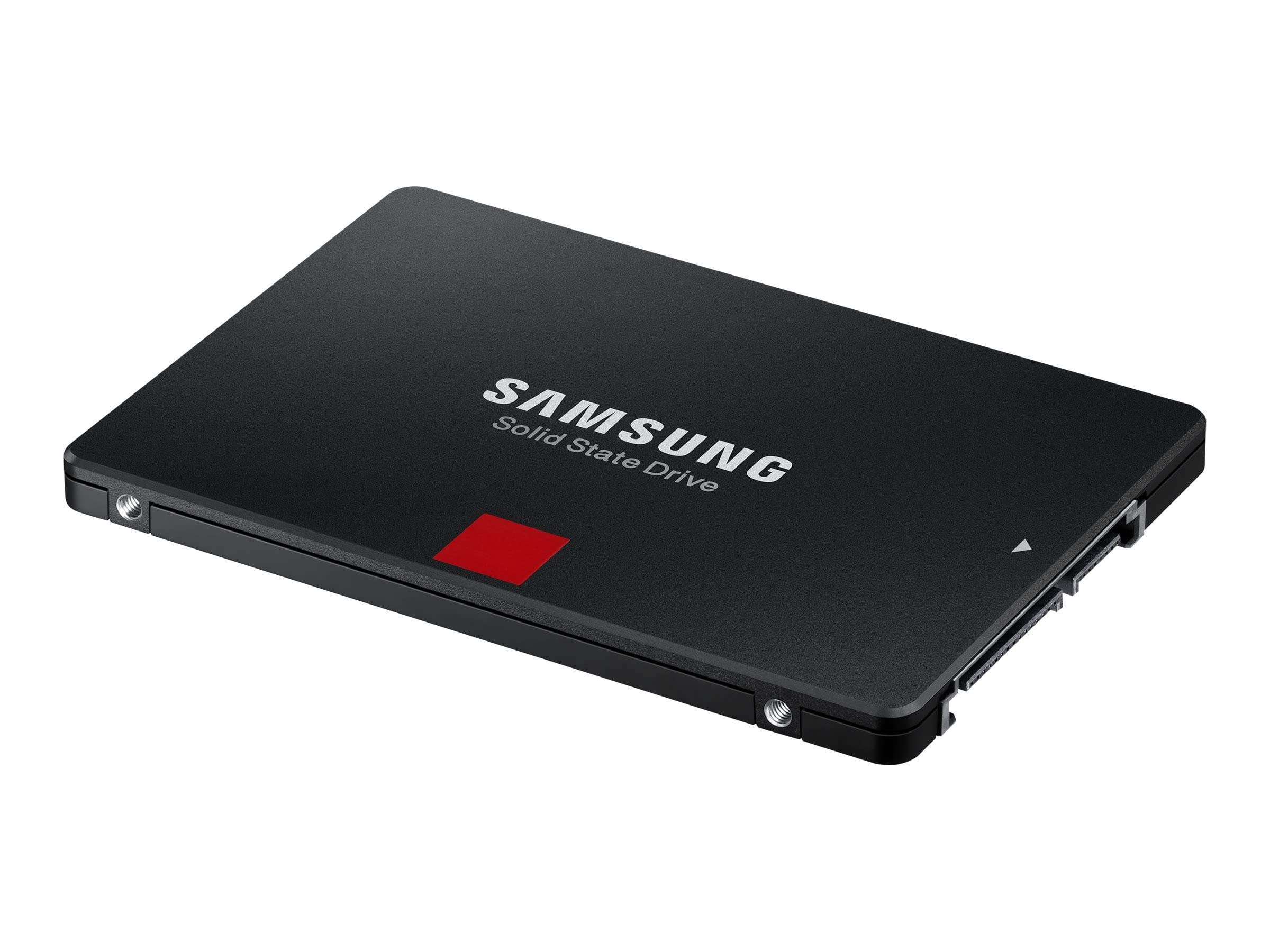
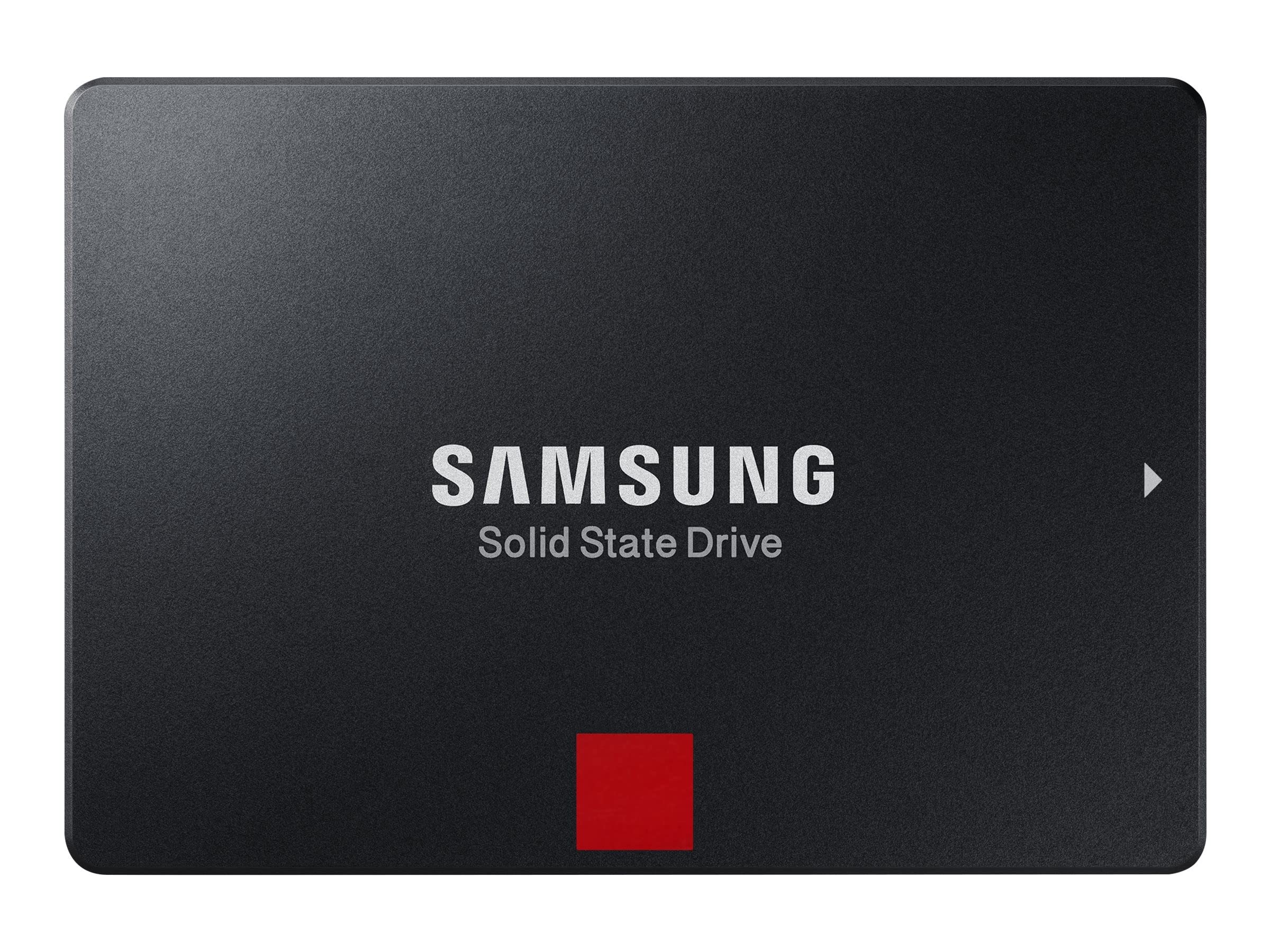
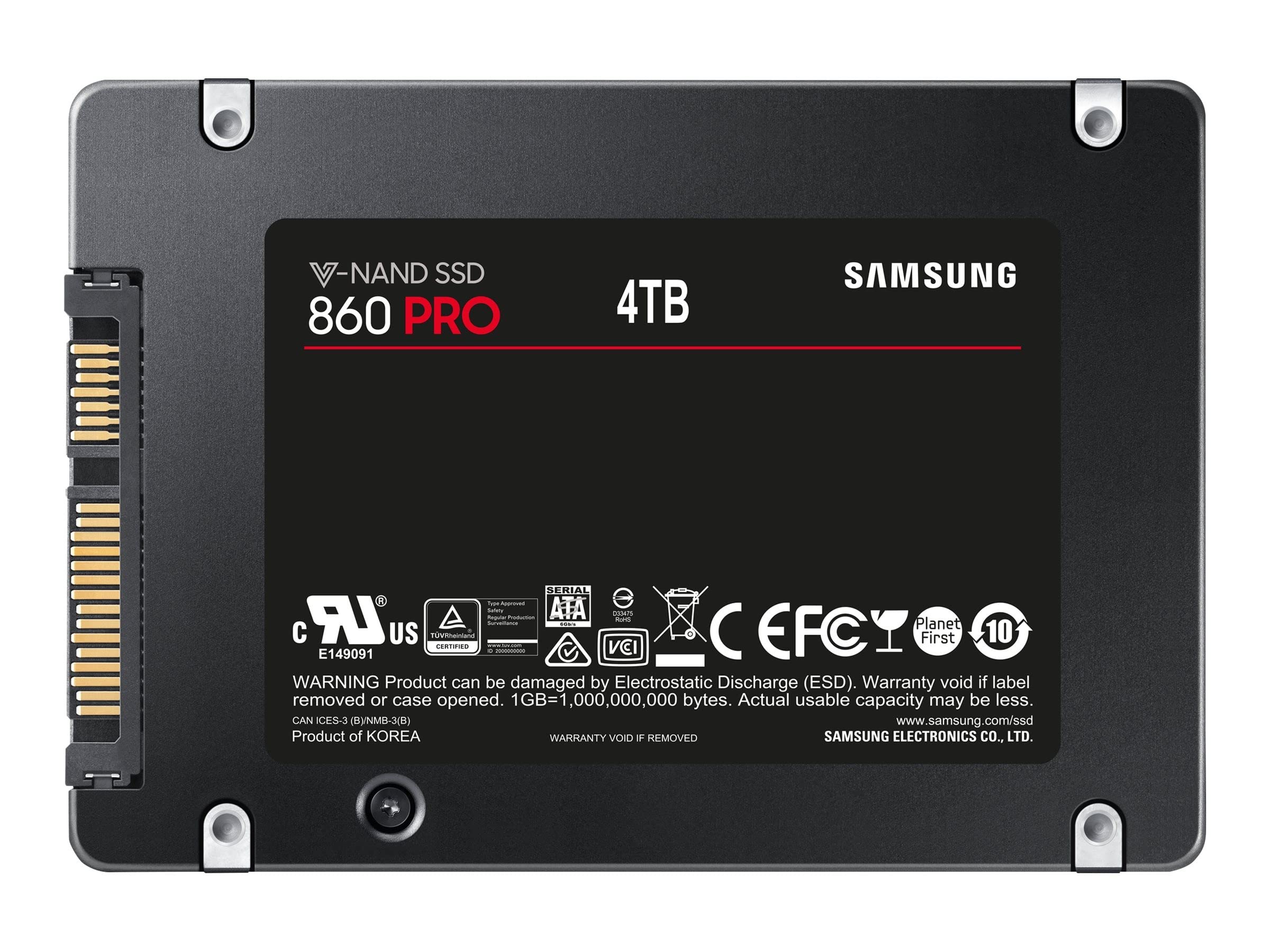
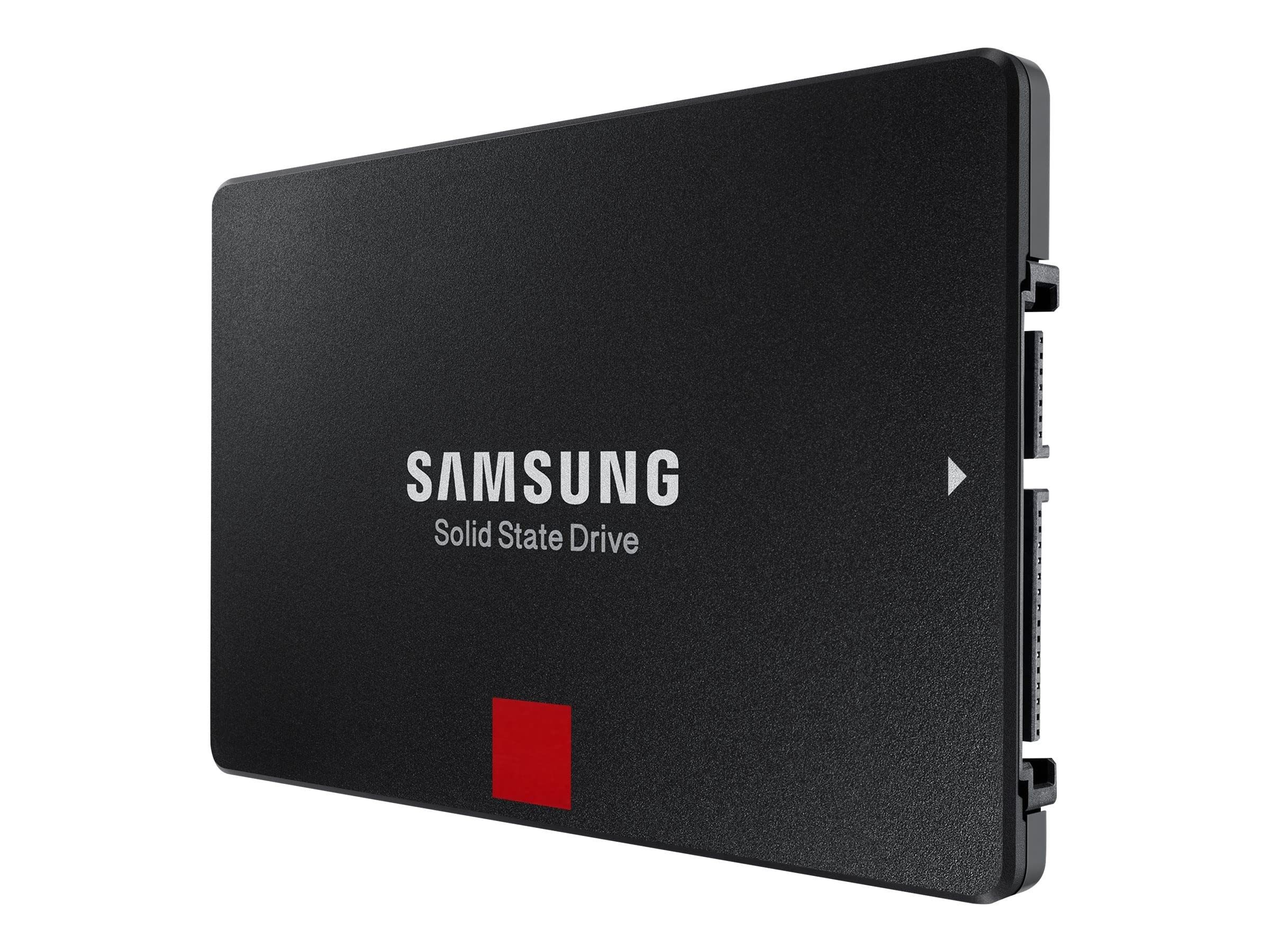
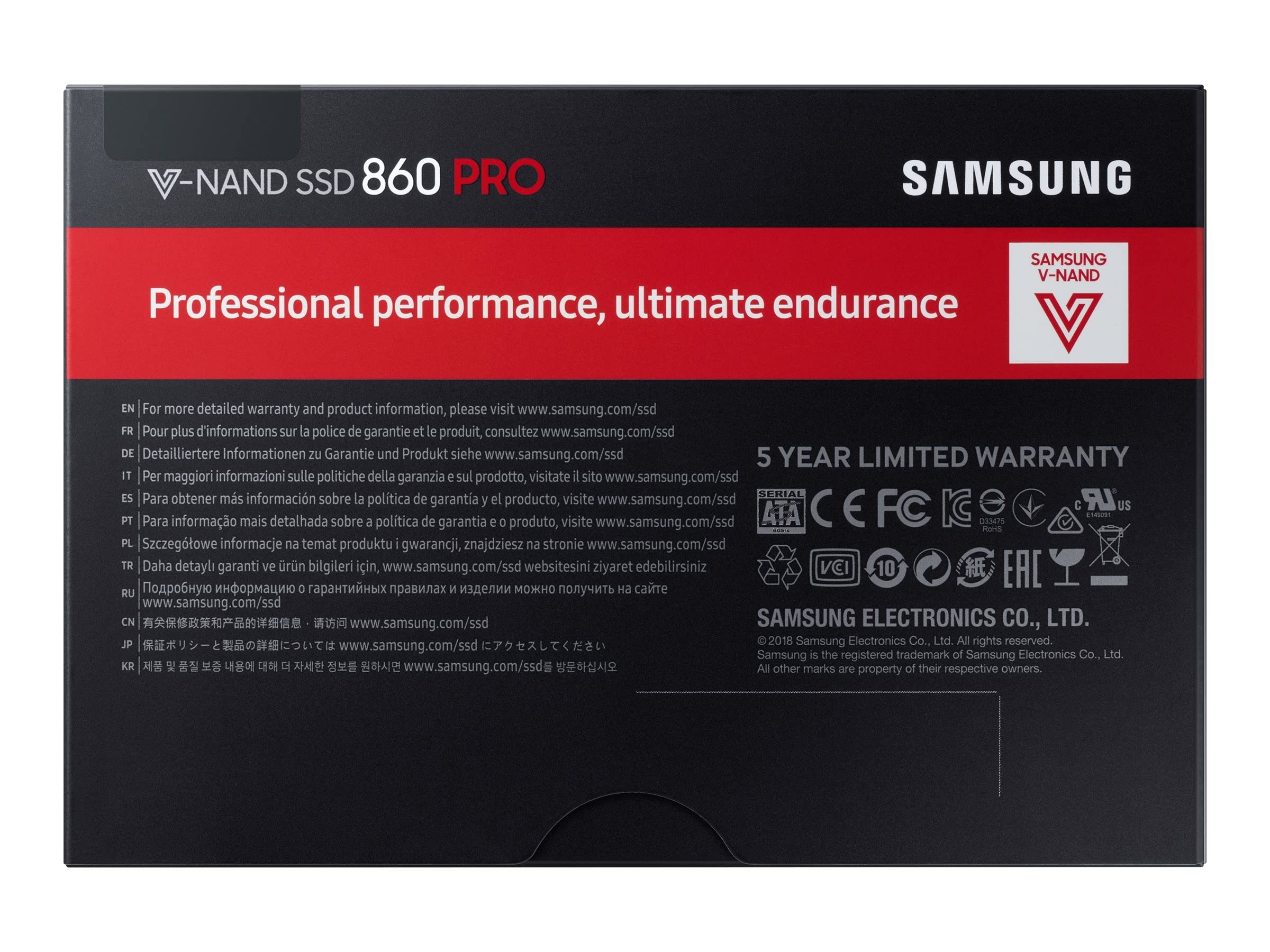
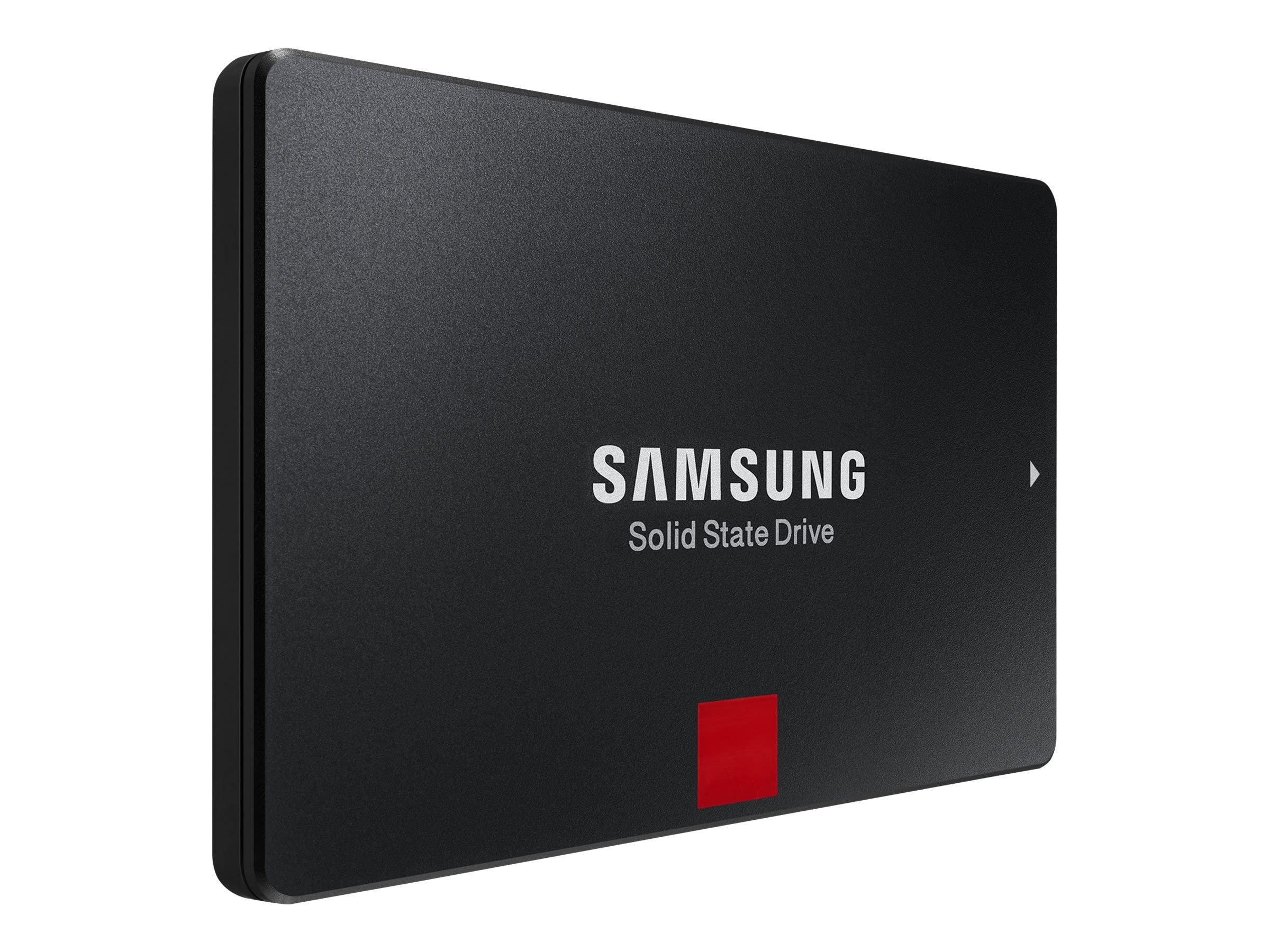
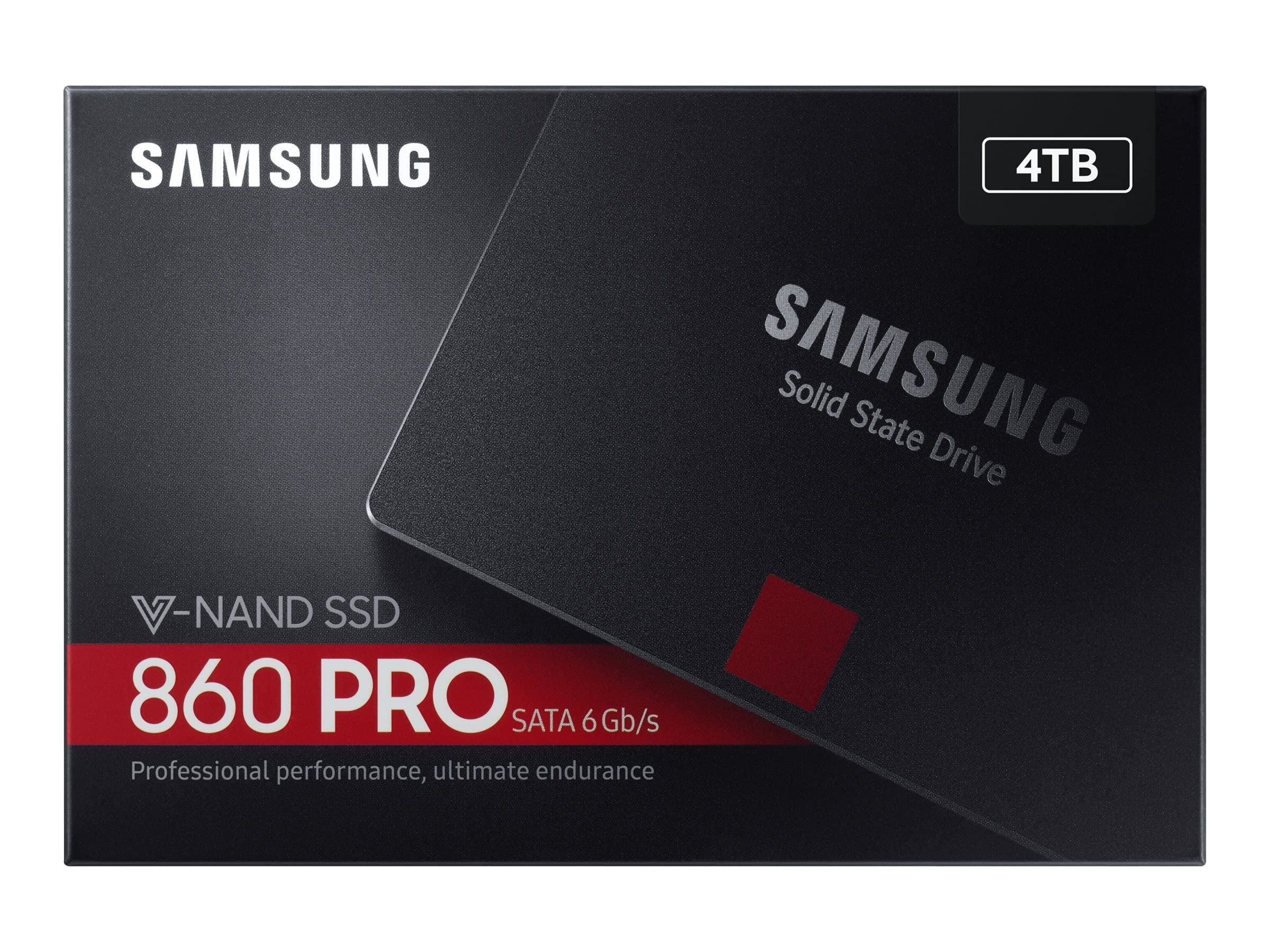
The Samsung 860 PRO 4TB SATA 2.5-inch SSD delivers professional-grade performance with sequential read/write speeds up to 560/530 MB/s. Designed for gamers and power users, it offers massive storage in a compact form factor compatible with all SATA 2.5" devices. Its silent, cool operation and 5-year warranty make it a reliable upgrade for demanding workloads and high-end systems.


| ASIN | B07BSQVH91 |
| Best Sellers Rank | 33,275 in Computers & Accessories ( See Top 100 in Computers & Accessories ) 209 in Internal Solid State Drives |
| Box Contents | SSD drive, Mounting screws |
| Brand | Samsung |
| Brand Name | Samsung |
| Cache Memory Installed Size | 4 |
| Color | Black |
| Compatible Devices | Devices with SATA Interface |
| Connectivity technology | SATA , USB |
| Country of Origin | China |
| Customer Package Type | Deposit Crate |
| Customer Reviews | 4.8 out of 5 stars 83,003 Reviews |
| Data Transfer Rate | 6 Gigabits Per Second |
| Digital Storage Capacity | 4 TB |
| Digital storage capacity | 4 TB |
| Form Factor | 2.5-inch |
| Global Trade Identification Number | 08801643120542 |
| Hard Disk Description | Solid State Drive |
| Hard Disk Form Factor | 2.5 Inches |
| Hard Disk Interface | Serial ATA-300 |
| Hard disk form factor | 2.5 Inches |
| Hard disk interface | Serial ATA-300 |
| Hard-Drive Size | 4 TB |
| Hardware Connectivity | SATA 6.0 Gb/s |
| Installation Type | Internal Hard Drive |
| Item Type Name | 4000 GB Internal SSD |
| Item Weight | 62 Grams |
| Item height | 6.8 millimetres |
| Manufacturer | Samsung |
| Media Speed | 560 MB/s |
| Model Name | MZ-76P4T0B/EU |
| Model Number | MZ-76P4T0B/EU |
| Network Connectivity Technology | SATA, USB |
| Number of Items | 1 |
| Product Features | Internal SSD 6.35 cm (2.5") |
| Product Warranty | Warranty Period 60;Months. Warranty period varies by model.For details about Samsung products specific warranty terms and conditions please follow the manufacturer website.. |
| Read Speed | 560 Megabytes Per Second |
| Special feature | Internal SSD 6.35 cm (2.5") |
| Specific Uses For Product | Professional, Gaming |
M**T
Samsung SSD 860 Evo 1 TB SATA3 - The best consumer 1TB SATA SSD - Great for Playstation 4 as well
Samsung SSD 860 Evo 1TB SATA3 When it comes to SATA3 SSD’s, there were only 2 brands for me which I looked at – Samsung and Crucial. This time I opted for this Samsung SSD 860 Evo 1 TB SATA3 to replace a standard HDD as a secondary drive in my laptop – there was already a Nvme SSD as a primary drive for system, etc, but I was fed up with speeds of traditional HDDs. Installation was super easy – I simply replaced a HDD with SSD. Nothing complicated at all – just swap and connect. After powering on, my computer detected SSD without any issues and the only thing required was to format it to to desired format. All done within 30 minutes. Did the swap change anything? Abuslutely yes. My games load several times faster, searching my photo collection is superfast as well as access to my music library. Video editing, encoding and audio editing are absolutely hassle-free. SSD does not also generate any noise and generates less heat, especially with normal usage. I tested my Samsung 860 Evo with AS SSD and CrystalDiskMark – results are great, as expected (disk is half full/half empty) - please see the photos attached. A few details about Samsung 860 Evo 1TB SATA3 (different models may have different specs): - NAND: Samsung V-NAND TLC (aka. 3Bit MLC) - Controller: Samsung MJX Controller - Cache: 1GB LPDDR4 - 5 years warranty or 600TBW - SATA3 Would I buy it again? Absolutely yes. I cannot imagine going back to HDDs, especially not for tasks I use it for. I used Samsung SSD 840 Pro previously, so I knew what to expect from Samsung SSDs (although I could not justify spending extra for Pro series this time). I understand that the price of this disk has not changed for years nearly at all, but the reason for is that it is probably the best SATA3 SSD, which can be purchased. It is also a great disk for PS4/PS4 Pro, although neither Xbox One nor Playstation 4 make a full use of SSD technology. Loading times are still better though, sometimes cut by half. Tested with PS4 Pro out of curiosity. 10/10 score and full recommendation. Warning: Please do not make a mistake and do not buy Samsung QVO SSDs unless you are absolutely sure you want QVO series for some, unknown to me reason. They can be slightly cheaper (but sometimes can even be slightly more expensive), but their performance and reliability due to use of QLC NAND in comparison to Evo and Evo Plus (TLC NAND) is a lot worse. They are still good SSDs in comparison to other brands QLC SSDs but in my opinion there is no reason to buy them as Evo SSDs are a lot better and for similar price.
J**V
Very impressive performance
Was a little dubious before purchasing, as there is usually too much hype surrounding these types of disks. HOWEVER, cast away any doubt you may have !! Adding one of these units is like upgrading from a nissan micra to a ferrari !! I was about ready to throw my PC in the bin, as the original platter based HDD were getting slower and slower with the frquent windows 10 update ( no issues with Windows 7 ... ) . Given that my machine has an 8 core AMD Black edtion CPU with 32GB ram, this was clearly annoying. It got to the point where it take several minutes to bring up the login screen. Once logged in, the disk drives were going flat out and unresponsive for at least 10 minutes ( go and make a cup tea literally and another one to follow) . Apps were then slow to respond. Being a developer, many of the development tools were taking several minutes just to OPEN.... Thought I would replace the Windows drive with one of these SSD from Samsung, as a last ditched desperate measure. UNBELIEVABLY IMPRESSIVE !! The machine now responds faster than I can. Whole thing boots up in under 2 minutes ( BIOS is the slow aspect now, as that takes over a minute) . Once logged in, the machine responds instantly , certainly faster than I can. The apps now open up instantly. The developer apps that used to take several minutes, now open in under 3 seconds and are responsive immefiately. Wooo Hoo . NOTE - You only need to replace the windows Boot drive for the performance gain. All my apps still run on a separate platter based HDD. Just proves that it was the OS that was causing the bottle neck ( that is windows 10 for you ) As a measure of metrics, copying a very large file ( 7.5GB ) from a hard disk drive to the SSD achieved sustained transfer speeds over 200MB/s , with a total transfer time just under 50 seconds. However, on repeated copies of the same file, the transfer speeds demonstrated significant improvement, which would suggest a level of read buffer/caching implementation. The second copy of the same file took 20 seconds. I am definitely buying a few more of these.
H**C
Much easier to install than I thought
I have a 7 year old Dell XPS 8300 Desktop PC with a 1TB HDD which I wanted to breath new life into by installing an SSD to improve boot, file and program load times. I wanted to make the SSD the system/boot disk and relegate the old HDD to secondary large volume storage. I needed a 2.5" to 3.5" mounting frame to allow me to install the new 2.5" SSD in a 3.5" bay inside the PC. There are so many choices of adapter available on Amamzon and I eventually chose this one https://www.amazon.co.uk/gp/product/B075FH3KTT/ref=oh_aui_detailpage_o00_s00?ie=UTF8&psc=1 You will make your own choice but even though I was only installing a single SSD, this adapter allowed me to add a second in the future if I wanted. I have done a separate review for the adapter, it was a very good choice for me. I was initially a little hesitant beforehand about attempting the install, but it turned out to be much more straightforward than expected. After disconnecting the power from the PC, I screwed the SSD to the base of the adapter then the adapter into the drive bay beneath the existing HDD (all screw holes lined up), then connected the SATA cable (provided with the adapter) to the SSD and motherboard SATA port and then the power cable (there was a spare connected power cable already inside the PC which I used, but there are also two supplied with the adapter) to the SSD. That was it in terms of physical installation. I powered up the PC and then used Samsung's Data Migration software downloaded from their support website (details come with the SSD). Samsung will recommend you clone the SSD by first connecting it externally using a SATA to USB adapter, but although this would be necessary with a Laptop, as long as you have space in the 3.5" bay to install the SSD and the original HDD (true for most desktops) my method will be faster and less fiddly. I made sure that I either deleted or moved to external backup all data (non system) that wouldn't need to be on the new SSD so that my 1TB HDD had a lot less than 500GB (in fact It was less than 100GB as I archived most of my non system data offline). I then ran the Samsung Data Migration tool to clone my HDD to the SSD. The time it takes depends o how much data to clone, but for me it was fast. When the clone finished successfully, I restarted the PC and using F2 key (different for various PC's) immediately at start up let me into the system BIOS. Here you need to reset the boot sequence so that the new SSD is number one for boot. After saving this in the BIOS and exiting, the PC booted up from the new SSD in about 1/10th of the previous time. Once happy everything was stable, I reformatted the old 1TB HDD which is now holding any large volume data that I don't need the high performace of the SSD for. As I said, boot time has reduced significantly and program/file load times are rapid. I'm very happy with my 'new' PC, and hopefully won't need to hit my bank balance for a replacement PC any time soon. Highly recommended upgrade for your PC, and it's also worth checking that you have sufficient RAM as that is just a 10 minute plug and play exercise.
S**R
Needed a bigger SSD.
My 6 year old OCZ Vertex 4 (with only 128GB capacity) has served me absolutely flawlessly, but I just needed more space. My previous SSD was plenty fast enough, so I mainly bought this for the higher capacity. I installed it to the motherboard with an old, but well made and previously unused, SATA1 cable. I did a bit of research beforehand, and basically you don't need a special SATA3 cable to get full SATA3 speeds (but if you do run in to a problem using an old cable, a new cable is probably the first thing you should try). From there, I entered Disk Management in Windows and Initialised the new drive with GPT (use MBR if you want better backwards compatibility with older systems). You need to do that, otherwise the drive will not be recognised in Explorer. I then downloaded Samsung Magician by mistake. I wanted Samsung Data Migration instead. While I was in Samsung Magician though, I read the warning that my firmware was out of date, so I updated it at the click of a button and a restart. While browsing in Samsung Magician I noticed you can also "set aside" some room on the SSD to prolong its life, and I decided to sacrifice 5% for this purpose. After switching to the Samsung Data Migration tool, it automatically identified my old SSD and my new SSD and cloning the drive was done quickly and easily - no configuration needed. The only thing you need to do, as the software says, is close any running programs (like antivirus, nVidia control panel, game updaters, browsers, documents etc). I'm actually surprised (and was quite nervous) that it could clone a live system. I was expecting to have to boot via USB and clone from the cloning program's user interface. That's the way I have cloned drives before, and it's far less user friendly. I'm glad this Samsung tool worked so well, and that it was so easy to use. After the clone was complete, I went in to my UEFI Bios and changed the boot order to the new Samsung SSD, and it booted perfectly from the Samsung. It's great looking at all that extra space! After that, I simply formatted my old SSD, so now it's completely blank, and I'll use it for additional storage. I did some benchmarks to make sure things were OK. I'm getting much better Sequential Read and Write speeds - 562 MB/s read and 531MB/s write - which is like a full 100MB/s faster than my old SSD (which I still consider really quick!). Random Read and Writes are about 100MB/s slower though, and I'm not sure if that's because the drive is bigger and has more space or what. I might do some more investigation in to that, with some googling and maybe a SATA cable swap. It's not urgent, the system feels just as quick as before, no noticeable slowdown or speed up - I just have loads more space now!
C**.
Great SSD on a sale
Overall a good SSD and the improvements are insane. Came quick through the post and the speeds are all top notch. I am a newbie when it comes to these sort of stuff so I didn't realise you needed a sata cable alongside with the ssd so either make sure you have a spare in your case or buy a new one. Instantly feels like a new pc and boots up windows really quick. I used the data migration tool to transfer most of data from my HDD to the SSD and was really easy and simple, although I found it tricky to pick certain files I wanted to keep and its interface was confusing at first. Games see a massive improvements in load times and in some games in helped with the stuttering I had due to me only running 8gb ram set. Again this doesn't apply for all games only a select few had their stuttering issues disappear when playing watch dogs 2, Kingdom come deliverance and Black ops cold war. Now I got this ssd on a sale for £52. Its definitely worth the price however, if this isnt on sale or retailing at its msrp of £99 then your probably better off getting any cheaper models such as crucial mx500 or bx series. Yes it is from samsung which historically I known to have better build quality and better endurance but usually SSD only last for 5 years before you need to change them. So I say pick this up if this is on a sale if not just go for the cheaper companies. The difference in speeds are hard to see in the real world and more and right now just does not justify the extra £40 compared to its cheaper competition. If its on a sale grab one as personally Samsung products are better in build quality and offer better endurance for the long haul but at £99, your better off getting more storage capacity from a different company at the same price.
M**C
The best SSD's around right now
Bought this to clone and upgrade an old 250GB 850 Pro boot drive in an old i5 Win10 PC to this new 500GB 860 Pro. The Samsung Magician software made it an absolute breeze to clone the old drive and also to update to the latest firmware for this new drive. It's working absolutely perfectly and is really fast. It may not be able to complete with the speeds of an NVMe drive but for an older PC or laptop which doesn't have that, the 860 Pro is the best SSD around right now.
J**O
Very fast internal drive but average for external use
PIC 1: Breathtaking performance after changing switching to 2TB SSD. Speeds of 200/100 R/W Mb/s for small files look good too. firmware, driver, and all the optiomizations were updated and set from Sansung Magician software for SSDs. PIC 2: Tested with external cable USB3.0-to-SATA[1] external benchmark with NTFS to see suitability for external backups[1]. Unfortutunately the SAMSUNG MAGICAN[2] des not recognize drive so no firmware updates or optiomizations are possibly to do to an externally attached drive. PIC 3: Tested with external cable USB3.0-to-SATA[1]. After fully optimized using Samsung Magicial (see EDIT). EXTERNAL USE: BIG IMAGE FILES Performance is poor. A standard HDD 7200rpm drive connected using USB-to-SATA cable easily can sustain about the same ~160 R/W Mb/s perfomance for big disk image files (like partition backups). Price per gigabyte for large backups would not cost effective with this. EXTERNAL USE: SMALL FILES Copying very small files was average over USB 3.0 (~20 Mb/s). There are USB flash drives and SSDs that perform better with throughput over 50 Mb/s. In comparison, standard HDDs over show about 1 Mb/s in crystaldiskmark. The tests were made running Windows 7. Overall a good internal drive. EDIT: I took the arduous route to optimize the drive (took hours): first clone HDD to external SSD using external cable, open laptop and other screws (not easy to tear apart an ultrabook), swap HDD out and SDD in, boot OS, run Samsung Magician and update firmware + make optimizations, shut down OS, reomve SDD and swap original HDD back, put back in scres, reboot OS, attach SSD with external cable ... and run crystaldiskmark. The results after optimizations? None (or neglible difference). Whatever optimizations Samsung does with its software, they must affect live OS environment only and not carry on to externally used SSD. See PIC 3 for comparision; please don't pay attention to possible score drops; cystaldiskmark always fluctuates a little from benchmark to next. [1] Used similar cable to Sabrent USB 3.0 to SSD SATA HDD adapter https://www.amazon.co.uk/gp/product/B011M8YACM/ [2] Samsung Magician seems to work only for drives connected to internal SATA port running in AHCI mode.
I**M
Amazing SSD
This is such an amazing SSD, it's much faster than my 7200 RPM HDDs (WD black & blue), I'm very happy with it. My PC runs much smoother now and it boots to the desktop very quickly and load everything fast! Also, It made my Forza Horizon 3 loads much quicker and run much smoother (fixed the stuttering problem) + all games and apps run very quickly. I was going to buy NVMe SSD, but: - it runs hotter than SATA SSDs (I live in Saudi Arabia it's hot here in the summer ~45c) and if it runs hot it will throttle.. so I like having the peace of mind that my SSD run cool with a consistent performance - It disables 2 SATA ports for each NVMe drive. - Almost double the price (970 EVO Plus) - Waiting for samsung 4.0 PCIe SSDs Just get a "good" SSD from any "good" company that you like. weather its (SATA or NVMe) Although NVMe SSDs are becoming cheaper nowadays and looks cleaner on builds no wires or mess. No matter how good & fast is your CPU & GPU & RAM & etc... HDDs are the bottleneck. notes & tips: * Use high performance power plan * Check and update firmware, although my SSD came with the latest firmware. * Remember that each full test run (Crystal disk mark) is going to write 40 GB on your SSD.. this is like installing 40 GB game.. so don't abuse it running benchmarks all the time. * If you have an Uninterruptible Power Supply (UPS) you can enable RAPID Mode. * Fresh, clean install is better than cloning OS * Don't forget to Over Provisioning (OP) your SSD (you can easily do it in Samsung Magician software) MY PC: i7-6700K Z170 Motherboard 16GB DDR4 3200 MHz GTX 1070 8GB VRAM 2TB WD Black 1TB WD Blue If this was helpful, please don't forget to rate it as helpful :)
Trustpilot
Hace 3 semanas
Hace 2 semanas