🎬 Edit like a pro, faster than ever—your secret weapon for next-level productivity!
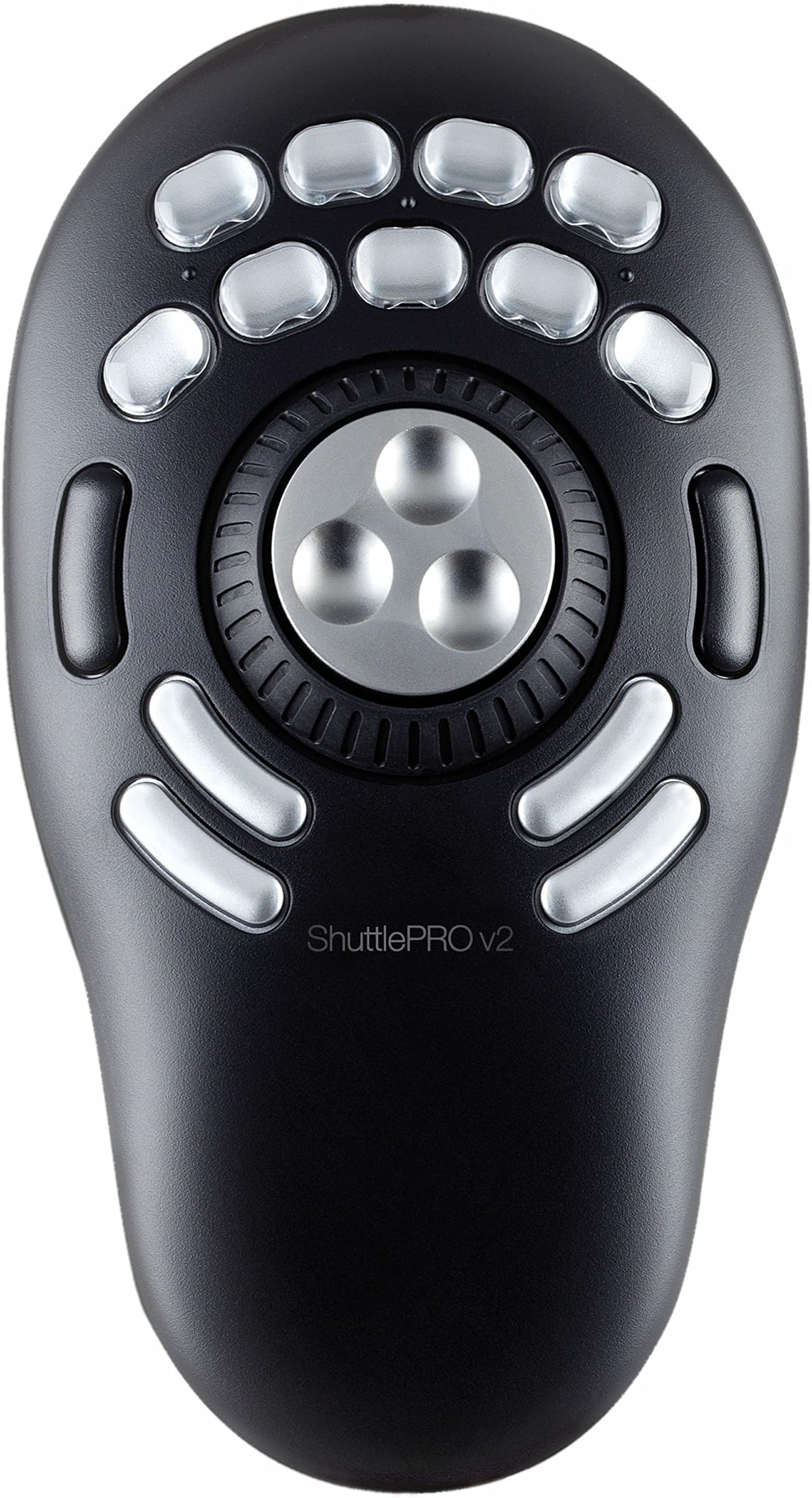
The CONTOUR DESIGN ShuttlePRO V.2 is a compact, ergonomic input device featuring 15 fully programmable buttons, a 360° jog wheel for precise frame-by-frame control, and a spring-loaded shuttle wheel for rapid fast forward and rewind. Designed for video and audio professionals, it comes pre-configured for popular editing software and supports extensive customization to streamline complex workflows. Lightweight and stable, it enhances productivity by enabling one-handed operation and reducing reliance on keyboard shortcuts.
| ASIN | B00027X2YM |
| Audio Recording | No |
| Best Sellers Rank | #6,409 in Computer Keyboards |
| Brand | Contour |
| Color | Black |
| Compatible Devices | Mac |
| Customer Reviews | 4.0 out of 5 stars 153 Reviews |
| Folded Size | 7.75 inches (l) x 4.3 inches (w) x 1.15 inches (h) |
| Global Trade Identification Number | 00743870005057 |
| Item Dimensions D x W x H | 1.15"D x 7.75"W x 1.15"H |
| Item Weight | 13.6 ounces |
| Manufacturer | Contour Design |
| Maximum Weight Recommendation | 0.85 Pounds |
| Media Type | ProductImage |
| Model Name | Shuttle Pro V2 |
| Product Dimensions | 1.15"D x 7.75"W x 1.15"H |
| UPC | 115970739475 761768034262 761768029206 743870005057 743870005002 |
| Warranty Description | 2-Year Warranty |
| Water Resistance Level | Not Water Resistant |
J**N
An excellent piece of gear for your video editing suite
I'm making one of my periodic forays into video editing and came across this device. I was dubious, thinking that operating this with my left-hand and the mouse with my right would challenge my manual dexterity skills. Wrong. Within a minute or less, everything felt comfortable and two-handed operation was a reality - and a wonder. This gadget really makes video editing a lot more efficient and fun. (As a hobbyist, I suppose I can see as fun what might be tedium for someone who does it day in and day out.) The ShutlePRO V.2 is well made, surpassing my expectations. The unit is fairly light, but six well placed pads on the bottom keep the unit in one place. The unit has a very low profile and fits easily under the palm. The nine upper buttons are arranged in two rows and fall naturally under the fingertips. There are four additional buttons below the job and shuttle controls. Two of these fall nicely under the thumb, but my little finger isn't dexterous enough to deal with the other two. Maybe with some practice. There are two other buttons, one on either side of the jog, usable with thumb and middle-finger. In all there are 15 buttons, all of which can be programmed by the user. Talk about power! Presets are provided for many popular packages. Labels are provided for common functions and I presume, but have not confirmed, that the caps on the upper two rows of keys are removable. One small drawback: only one set of pre-printed labels is provided and no mention is made on the instruction sheet of how to get more, including blank ones for your own sets. Small item which I suspect a call or email to tech support will resolve. The jog and shuttle wheels are marvelous. The jog wheel, in video editing gives you frame by frame control. It has three indentations for your fingertip. For my fingers, I would have preferred slightly deeper indentations, but that might make the jog wheel feel like a bowling ball for others. Anyone who done any video editing with pro equipment knows that a jog wheel is indispensable. The shuttle wheel is spring-loaded and has seven positions on either side of center. Depending on your video package, this will speed up your forward and reverse scrolling through your video material. The jog and shuttle controls are also programmable giving the daring (and perhaps mad) the opportunity to program up to 45 more functions. Programming the keys with the included utility is simple and straightforward. So far, I am definitely the kid with a new toy. Some of the tedious parts of video editing, such as single frame navigation using the keyboard are banished hopefully forever. I still have to decide what functions to assign to the buttons and which buttons to use. The ShuttlePRO V.2 is not limited to video editing. It can be used with audio programs, Photoshop, even Outlook, Word and whatever else you have on your machine. It is a very powerful adjunct to your mouse. (I don't think it would replace a mouse or tablet.) On the whole, I am very pleased with the purchase. I bought for use in video editing and don't know if I will ever use it for any other purpose. Doesn't matter to me since it does what I want and more within the confines of video editing. A very nice product. Jerry
A**L
Best workflow solution for Adobe Lightroom
It really is the best workflow solution I've found for Lightroom thus far. I've been an LR user for years, and I finally wanted to enhance my workflow to speed through photos easily. As a wedding photographer, I do high volume work so I'm already fast. I edit 1500-2000 photos per day (at least, I try to) and I can easily do so with the Contour in a shorter amount of time than just the keyboard/mouse combo. I've tried a Logitech G13 and it wasn't very ergonomic, also too many buttons. Tried the Logitech G600 MMO mouse and I had a lot of mis-clicks and MMO mouses aren't very comfortable. I've also tried midi controllers such as the Behringer X-touch Mini as well as the very expensive Palette Gear. Both of those controllers required the use of both of my hands (one hand required too much travel between controls). I wanted my right hand free for more specific cropping work, so I have to use a mouse with my right. With the Contour, I was easily able to press all buttons and use the dials with just my left hand with hardly any travel or learning curve - thus speeding up my workflow. I still had my right hand free so I can use my mouse for quick cropping/healing/brushing. The Shuttle Pro is also very comfortable to use compared to the other devices I've tried above. Being a PC user with Windows 10 and LR CC, I unfortunately could not try Paddy / VSCO keys / Motibodo / Pusher Labs. I'm still totally satisfied with the Contour and I don't think I'm missing out. If you're curious, here are some of my LR CC settings: Top buttons: Unflag, flag, paste previous, reset crop, crop tool, undo, redo, red label, enter Left and Right buttons: Previous, Next Jog: Up/Down (Hover over slider with mouse) Shuttle: - / = (Set to control Exposure mainly) Bottom buttons: Backspace, enter, copy settings, paste settings Highly recommended. This changed the game for me.
B**A
Good - but problem with IMovie 8
Great Jog/Shuttle. Firm under the hand. Very responsive controls. One current (and hopefully they resolve this soon) limitation is that the Shuttle Pro does not automatically recognize IMovie 8. Manual says: "The software automatically detects the program you are using and automatically switches to the correct application settings associated with the application." Well not on my system (brand new iMac) which came with iMovie 8 installed. There is an iMovie setting in the Shuttle Pro Application settings - but it must be for an earlier version of iMovie as it's not recognized. I had to add the settings myself. That's not a big deal - but I'd expect that something as popular as iMovie 8 would be supported out of the box. I did go to the Contour web site to look for config files/drivers that would support iMovie 8 -- I'm still waiting for my registration e-mail to give me download access...
J**N
Perfect for Video Editing!
I've had this for about 2.5 months now and I can't imagine editing without it. I use Premiere Pro CS5.5 and After Effects CS5.5. I find the ShuttlePro to be especially helpful for Premiere Pro and timeline editing. Here's my setup for Premiere Pro: Top Row: "Save", "New Sequence", "Copy", "Paste" Second Row: "Set In", "Play", "Split", "Delete", "Set Out" Left: "Jump Left", Right: "Jump Right" Bottom Left Buttons: "Import" and "Drop in Timeline from Source Monitor" Bottom Right Buttons: "Undo" and "Redo" And, of course, I use the middle wheels for scrolling left and right within the timeline. At first, remembering what buttons did what took some getting used to. It's nice that the top two rows of buttons have labels that can be used to help you remember what does what, but the bottom 4 buttons are missing this. Eventually, I did learn what each button does and have definitely noticed an increase in productivity. The biggest increases in productivity have come due to a major decrease in mouse movement. To create a new sequence, it's pressing one button instead of moving the mouse all the way up to the top-left of the screen and navigating to New > Sequence from there. It may not seem like it, but this is a huge time-saver, especially when you add up all those little trips. I edit projects with about 15 sequences, so multiply that saved time by 15 just for that one button. I also recently ordered an Anker 8000 dpi gaming mouse, which has 9 more programmable buttons. I plan on adding a few more commands to this mouse to keep my hands as keyboard-free as possible. I think this is just about as optimal a solution you can get for increasing your editing productivity. All in all, I love this product and would recommend it to any video editor in a heartbeat!
7**S
Are you a professional filmmaker?
If you are a professional filmmaker don't buy this! Firstly customer service is just about the worst you can possibly get. When I sent an email telling them that I installed the driver as per the instructions and was having issues getting it to work, it took them over 5 WORKING days to get back to me. Their answer? Just keep uninstalling and re-installing until it works. I did this 10 times (insanity). It still did not work. Then I get an email telling me that it's not their fault, that some other companies are having the same issue with Mac's OS, and attached articles about it. Ahhhhh, you just sold me something for a hundred bucks and I expect for that one hundred bucks its going to work. Is that so much to ask? Since a predominate number of people are probably editing on a Mac wouldn't you think you would work on having your drivers work 100% of the time? So if you like to waste a lot of time, a lot of money and a lot of frustration, all while you are trying to finish the editing jobs you have on your plate, then this product and customer service is for you! If you don't have time to troubleshoot, and expect things to work for the money you paid, then never, ever get anywhere near the ShuttlePROV2 from Contour. And if you have filmmaking friends who are thinking about buying it, you should tell them to think twice. Needless to say, I reached out to customer service again and reminded them about our last email where they were still helping me resolve this issue but after multiple emails hadn't heard from them in 12 days. The last exchange, I even gave them one last moment where they could try to resolve this but even put it in the email that if I didn't hear back from them in a timely manner I would be forced to return the product and rate their product accordingly. Big surprise, no email. So here's my review.
S**N
Potentially great, but...
It may be unfair to dock the hardware for what is essentially a software problem, but... On the mac, at least, this acts as a keyboard wedge (is this the term I'm looking for?), meaning it sends a keystroke, a combination of keystrokes (through a nifty macro writer) or a few mouse functions (scroll wheel, click). So if you can do it on the keyboard, you can do it on the ShuttlePro. This works great for the buttons, but can be problematic in the shuttle and jog functionality. I was hoping for a driver that would treat the shuttle ring as a unique piece of hardware; instead I need to assign keystrokes to 15 shuttle positions (-7 to 0 to 7) and potentially 28 transitions (-7 to -6, -6 to -5, ... 6 to 7, 7 to 6, ... -6 to -7). To be fair, I'm not certain how or if the transitions are ever used, the documentation is super vague on this. You then assign the frequency of keypresses per position - from "hold down" to "ten times a second" to "once every thirty seconds". (Or, if simulating a mouse scroll, assign the frequency AND the number of lines/pages you want to scroll.) Problem is, the effect of sending these keystrokes can overwhelm the software and make it unresponsive - you release the shuttle wheel, the ring snaps crisply back to zero, and the video keeps zooming forward or backward, making accuracy (in some software, at least) impossible. The laborious nature of tweaking the settings (14 or more tweaks to, say, see what happens if I change the frequency from "Hold down" to "As fast as possible"). Thankfully, these tweaks do take effect instantly, no restarting. This is likely an unfair gripe for something like final cut pro, which has well implemented keyboard equivalents for shuttling (which the shuttlepro can utilize) and so doesn't suffer from this bogging down. But in my case, it made me still need the mouse... It would be a five star product darn it all! If I figure a way around this, I'll definitely update my review and give it the deserved bump.
J**M
Stick With It, It is worth going through the learning curve.
When I first started trying to use this, I was about to throw it out the window. It took a bit of work to figure out the interface. However, once I did, WOW. My productivity skyrocketed. Basically, you have fifteen buttons that you can program as either single keystrokes or a series of keystrokes. You also have two analog wheels that are great for moving along a timeline (e.g., Adobe Premiere) or zooming in/out (e.g., Photoshop). I guess what I like the best about this is that the keystrokes are program-dependent. What I mean is that, when the computer is running Premiere, it uses applies one set of keystroke definitions and, if you switch to MS Word, the computer will start using a different set of keystroke definitions. The device's driver recognizes which program you are in and switches automatically. There are a few things I wish it would do. I wish I could copy a macro so I wouldn't have to redo it from start when using similar macros. I wish it didn't come loaded with all these keysets for different programs. I don't own 90% of those programs and the ones I do own, I want to set up my own keyset. I had to go in and manually delete them all. That took a while. These are minor inconveniences for a product that saves me so much time, whether I am video editing in Premiere, doing text recognition in Word, or graphics design in Photoshop. I think this is a must-have for a power user, particularly one who uses several different programs.
P**Q
This can be pretty subtle; it works fine for 255 clicks
I bought this to try out as a tuning knob and user interface for a software defined radio receiver I'm creating. I wanted to compare it to my Griffin PowerMate knob, which only has a single button (the dial knob itself). The Contour intrigued me because it also has a spring-loaded shuttle knob and a bunch of buttons I could use to select various modes. Turns out there's a serious design bug in the Contour. It reports dial motions to the host computer as "relative" events, i.e., that the dial has been turned this many clicks clockwise or counterclockwise, while the actual reports are "absolute" events, i.e., dial positions from 0 through 255. This means that every 256 clicks of the dial, the Contour will report position "0", which the Linux kernel HID driver interprets as no motion and correctly drops the event. Application software doesn't see it. This can be pretty subtle; it works fine for 255 clicks, nothing happens on the 256th, and then it jumps two positions on the 257th. The bigger problem is that this bug also applies to the spring-loaded shuttle knob. As you turn it to the right, it sends "1", "2", "3" and up to "7" as you keep turning it. When you release it, it sends "6", "5" and so on. Turning it to the left produces negative numbers. So far so good, but when it sends "0" to indicate that it has returned to the center position, again the kernel driver drops it as a relative event in which nothing seems to have changed. So your software continues to see either +1 or -1. It is possible to work around this by patching the kernel driver, but this sort of thing simply shouldn't be necessary for a device that costs around $100. The buttons are nice and work fine, but I could perform the same functions with my existing keyboard. Also, the dial feels somewhat cheap. It's not as easy to turn as the PowerMate, there's less precision (the steps are larger) and the mechanical detents are annoying when you have to turn it a lot. I'm sure this works fine for some applications that have been written to work around its quirks, but I'm disappointed in this product.
Trustpilot
1 month ago
2 months ago