We remain fully operational. Our teams are working around the clock to ensure your deliveries continue safely.

DOWNLOAD THE APP


Customer Services
Copyright © 2025 Desertcart Holdings Limited
DOWNLOAD THE APP
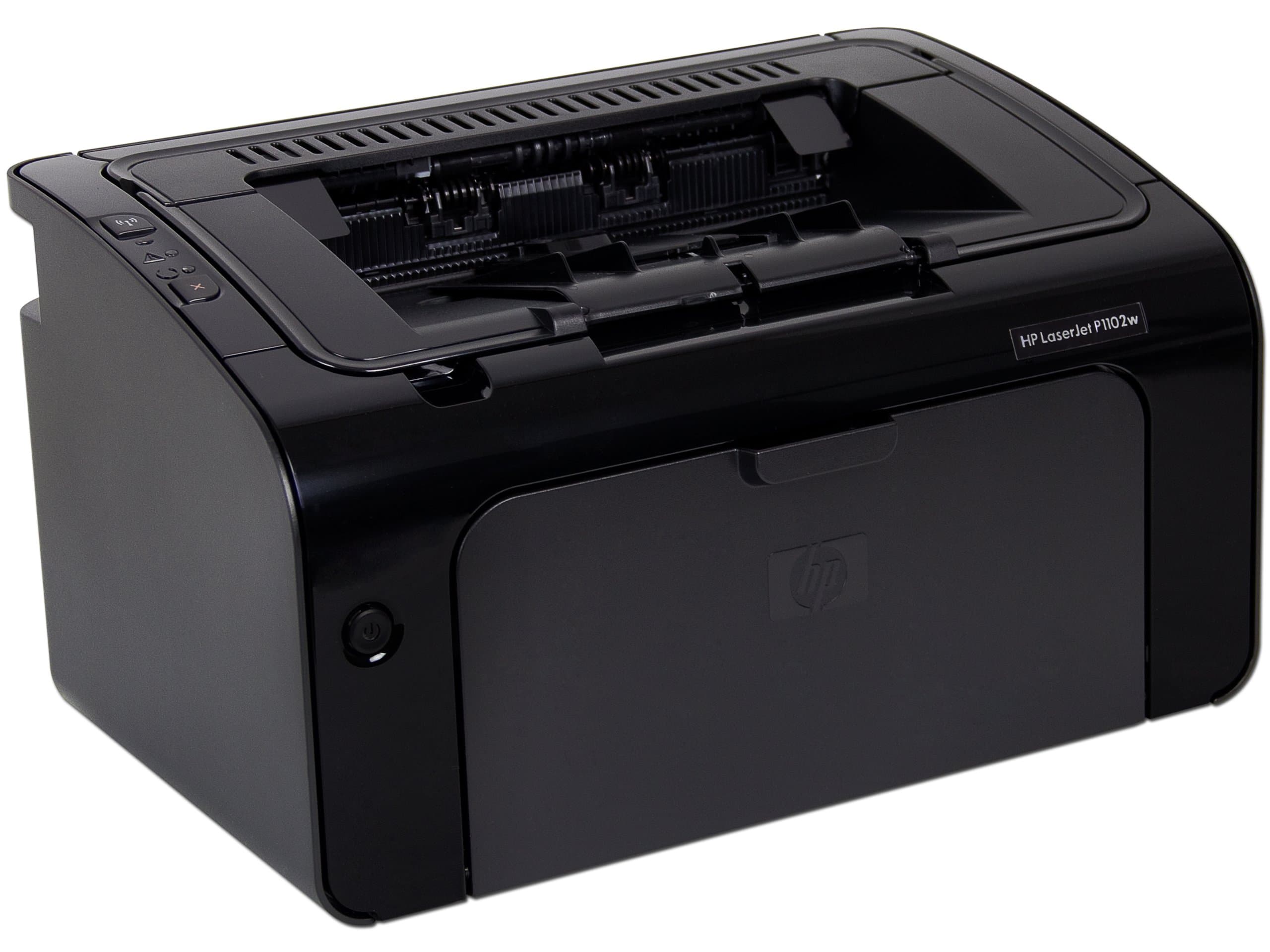



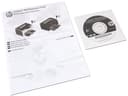

🖨️ Print smart, print fast, print anywhere — don’t get left behind!
The HP LaserJet Pro P1102w is a compact, monochrome wireless laser printer designed for home and office use. It delivers sharp black-and-white prints at up to 19 pages per minute, supports mobile printing via HP ePrint, and features energy-saving Auto-On/Auto-Off technology. With a 150-sheet tray and easy wireless sharing, it balances efficiency and convenience for the modern professional.


| ASIN | B00847UWUE |
| Additional Printer Functions | Copy |
| B&W Pages per Minute | 19 ppm |
| Best Sellers Rank | #158,427 in Office Products ( See Top 100 in Office Products ) #202 in Laser Computer Printers |
| Brand | HP |
| Built-In Media | Power Cord |
| Color | Black |
| Compatible Devices | Laptops, PC, Smartphones |
| Control Method | Voice |
| Controller Type | Amazon Alexa |
| Customer Reviews | 3.8 3.8 out of 5 stars (2,312) |
| Dual-sided printing | Yes |
| Duplex | Manual |
| Global Trade Identification Number | 00886111917143 |
| Hardware Interface | USB 2.0 |
| Ink Color | Black |
| Item Dimensions D x W x H | 7.7"D x 9.4"W x 13.7"H |
| Item Weight | 11.6 Pounds |
| Manufacturer | HP |
| Maximum Copy Resolution Black and White | 1200 dpi |
| Maximum Copy Speed Black and White | 19 ppm |
| Maximum Media Size | 8.5 x 11 inch |
| Maximum Print Resolution Black and White | 1200 dpi |
| Maximum Sheet Capacity | 150 |
| Model Name | LaserJet Pro P1102w |
| Model Number | P1102W |
| Model Series | P1102 |
| Number of Trays | 1 |
| Other Special Features of the Product | Network-Ready |
| Output sheet capacity | 100 |
| Paper Size | 8.5 inch x 11 Inches |
| Power Consumption | 370 Watts |
| Print media | Envelopes |
| Printer Connectivity Type | USB |
| Printer Output Type | Monochrome |
| Printer Type | Laser |
| Resolution | 1200 x 1200 |
| Scanner Type | Document |
| Series Number | 1102 |
| Specific Uses For Product | Home, Office, business |
| Total Usb Ports | 1 |
| UPC | 884962431405 778889331699 886111917143 |
| Warranty Description | One-year limited warranty |
| Warranty Type | full warranty |
| Wattage | 370 watts |
B**E
HP Laserjet P1102W Wireless Works on MAC OS 10.7.5
After reading all the reviews both pro and con about installing this printer on a MAC I went ahead and bought it anyway. And I did get it to work properly (wireless) the first time on MAC OS 10.7.5. (The USB worked easily also although we no longer use the printer on USB.) Only the first installation was difficult. We have several MACs installed at this location all of which reach their printers over wireless. The other printers all saw the printer and connected flawlessly. So I like this printer for it's cost, size and operating efficiency. Good, low-end B/W laser! Follow these installations instructions which I found on the Apple site. They work! The wireless configuration proccess is the same on Mac OS X 10.7 as for Snow Leopard. Before configuring the wireless connection, make sure to install the latest Software version using USB first. Any previous version will appear differently and will not work on Lion: [...] Follow these steps to change to a wireless network in Mac OS X v10.6 and v10.7. You can view a video demonstration to learn how to set up a wireless connection, or you can follow the written steps listed below the video. The following video demonstrates how to set up a wireless installation on the HP LaserJet P1102w printer on a Macintosh computer. The product in the video might not look exactly like your product, but the steps are the same. If you have trouble viewing the video, or to view the video in a different size, click here to play the video on YouTube. In Finder , click Applications , and then double-click System Preferences . Click Print & Fax (in Mac OS X v10.6) or Print & Scan (in Mac OS X v10.7). Click Open Print Queue , and then click Printer Setup . Click the Utility tab, and then click Open Printer Utility . Click HTMLConfig . Click the Networking tab, and then click Wireless from the list on the left. Under Communication Mode , click Infrastructure , select your network SSID from the Available Network Names (SSID) list, and then click the << button. From the Security Mode pop-up menu under Authentication , click WEP or WPA/WPA2 . Your selection depends on which Wireless Security Protocol your network uses. NOTE:If your network does not have Wireless Security, leave the Security Mode set toOpen System (No Authentication) . Type your WEP/WPA/WPA2 key in the appropriate field, and then click Apply . In the confirmation box, click OK , and then close the HTML Config and Print Queue windows. In the Print & Fax or Print & Scan window, click your HP product from the list of printers, and then click the Minus sign to remove it from the list. NOTE:This action removes the USB Connection from the list so that the only entry for your HP product is the Wireless Connection. Disconnect the USB cable from the product and the computer. Under Printers , click the Plus sign ( ). Select your product name with Bonjour as the Kind , and then click Add . Close the Print & Fax or Print & Scan window. Step two: Delete the USB connected printer, and then add the wireless connected printer Click the Apple icon, and then click System Preferences . Click Print & Fax . Under Printers , click your product, and then click the Minus sign (- ) to remove the product. Click the Plus sign (+ ) to find your product. When you find your product, make sure that the connection type listed under Kind is Bonjour . Click Add to add your wireless connected product.
M**R
Easy installation? Don't believe it!
I did a lot of research before settling on this printer for light home use. I did note that some people had to go through a lot of steps to get successfully connected at home, but others chirped cheerfully about how easy the set up was. Don't believe it!! If you are a normal person, somewhat technically literate, but looking for a printer that only takes a couple of clearly described steps to set up, forget about this one. I would've paid twice as much for an easier install. I bought this weeks ago and, yes, I am a person who reads directions and can follow them, but when I came to about the third step in the process the "Easy Install" screen did not pop-up as described. In fact, I have never seen it, weeks later. By hook or by crook, I finally got the thing working, fitfully. Sometimes it was off and wouldn't automatically start; other times it just refused to connect. Then, horrors, I tried to connect a second laptop. Well, that was the end of everything except my frustration. It stopped responding. A week later, my brother-in-law, an engineer and a technically savvy person who uses every piece of technology known to humankind, came by and I begged him to help fix the system. It took him two hours to go through the process again and again, finally discovering that two laptops can't be connected to the machine at the same time. Ok, that I can deal with. Too bad about the much-ballyhooed "print from your Android phone or tablet!!" My bad. He eventually got the thing working that night. He left. A couple of days later I wanted to print something. It doesn't work. My wireless signal is strong, the printer is on and the lights indicate it is ready, but the document does not print. Apparently the printer is not responding. I could throw the thing through the window except that I spent additional money buying extra toner cartridges, so I'm invested in more than the printer. I have read through many, many reviews and posts now and have spent hours on the HP support forum. It looks like hundreds of people say that this is a hard installation with many obstacles and little to support users. Written instructions do not match what many see as they attempt installation. There are lots of posts that give you work-arounds but every one is different. Push these two buttons at the same time...unplug it...reinstall...make sure this light flashes three times...stand on your head. Tried lots of them and, no go. I wish I'd bought a Brother. I hate to add to the cost by hiring some pimply-faced kid to come do the installation, but I may have to do that. And that will really ensure my unhappiness with this product.
P**.
I purchased this printer to replace my inkjet. I got tired of paying way too much for ink so, when the print head needed replacing, I junked it and purchased the HP from Amazon. It was delivered on time with no hassles. Setup was uneventful. The picture instructions are easy to understand and follow. When I connected the USB cable and powered up, it connected itself. I'm not using the wireless connection because it's sitting right next to my computer and a simple USB cable is foolproof. The only irritating thing is the 'auto off' feature. After 4 hours of non-use, the printer switches itself all the way off. Not just sleeping, all the way off. So, when I want to print something, I have to push the switch to turn it on. It comes to life in about ten seconds and re-connects to the USB port in another five. I suppose it's saving me electricity but, if I forget to hit the button, my printing stalls without some popup to tell me why. Not a big deal, but a quirk. So far I've printed about a hundred pages without a hitch. This is a good, economical printer which gives me excellent hardcopy for a good price.
A**S
La mejor opción, cuando lo que buscas es un trabajo de impresión sencillo pero profesional, la configuración simple, los consumibles económicos y la calidad muy buena.
A**R
I purchased this printer about 3 weeks ago. I am operating it wirelessly. So far I am very pleased with the whole experience. It arrived in 4 days. Although I am not a technophile, I was able to set it up without too much frustration. YouTube videos really helped! Very pleased with the compact size of the unit and it hardly takes up any room on my desk. The unit has a lovely, modern black finish which matches other computer equipment. I am delighted by the extensive online backup that HP provides for their equipment. Since it is a new purchase, I cannot comment upon the reliability. In any case, it was costing me a small fortune to keep my inkjet printers supplied with ink. This printer cost a little over $100 which is an incredible price!
L**.
Realiza muy bien su trabajo, imprime rápido y puedes conseguir los cartuchos de tóner compatibles, lo que hace que puedas ahorrar en impresiones. Su tamaño es compacto, por lo que ajusta en cualquier lugar. La función de impresión inalámbrica facilita mucho las cosas, y por su costo se vuelve ideal si buscas algo práctico y funcional.
A**R
I'm a computer expert and have no difficulty setting up computer stuff and figuring out how things work. This specific garbage has wasted my time more than 20 hours! HP does not support its products. Since I bought this printer in 2015 HP has changed the WiFi connection so many times. And now the apps just works some times, and you can not count on it. So, I am practically printing with a USB cable! Like 10-15 years ago. Recently one of my friends bought a WiFi printer from another leading brand, Then I saw how it is done! hassle free!
Trustpilot
3 weeks ago
2 weeks ago