
DOWNLOAD THE APP


Customer Services
Copyright © 2025 Desertcart Holdings Limited
DOWNLOAD THE APP


🚀 Elevate your data game with Synology DS1522+ — where speed meets scalability!
The Synology 5-bay DiskStation DS1522+ is a high-performance, expandable NAS designed for professionals and small businesses. Delivering up to 796 MB/s sequential read/write speeds, it features four 1GbE ports with optional 10GbE connectivity and supports up to 15 drives via expansion units. With robust RAID data protection, versatile built-in apps for backup, virtualization, and surveillance, plus a 3-year warranty, it’s a secure, scalable powerhouse for managing and safeguarding your digital assets.








| ASIN | B0B4DFBRZV |
| Best Sellers Rank | #8 in Network Attached Storage (NAS) Enclosures |
| Brand | Synology |
| Color | Black |
| Customer Reviews | 4.7 4.7 out of 5 stars (8,853) |
| Date First Available | June 28, 2022 |
| Department | Computers & Accessories |
| Hard Drive | Mechanical Hard Disk |
| Hard Drive Interface | Serial ATA |
| Item Dimensions LxWxH | 12 x 12 x 11.25 inches |
| Item Weight | 9.24 pounds |
| Item model number | DS1522+ |
| Manufacturer | Synology |
| Product Dimensions | 12 x 12 x 11.25 inches |
| Series | DS1522+ |
C**N
Synology NAS: The Secure, Versatile Powerhouse for Your Data Needs
TL;DR: Choose Synology over QNAP for security and ease of use, ideal for consumers and small businesses, feature-rich, great for backups and media storage, surveillance feature adequate but not standout, VPN and private cloud services are bonuses. In the arena of NAS (Network Attached Storage) solutions, the battle often boils down to Synology versus QNAP. From my battlefield, Synology emerges as the clear victor. Its software is the Fort Knox of digital security, boasting a robust, feature-rich, and user-friendly experience. QNAP, while a worthy adversary, has stumbled in the past with security breaches – a cardinal sin in the world of data protection. Now, let's talk about this particular Synology model, a contender that punches above its weight in the entry-level business category. It's a champion of data security with its RAID support, turning data recovery and hard drive upgrades into child's play. Picture this – one drive fails, and you're as cool as a cucumber, knowing your data's safe. Upgrading to a new NAS? A walk in the park, especially with RAID in your corner. And let's not forget about the freebie that's a total game-changer – the Active Backup for Business. It's like having an army of backup ninjas protecting your Macs and PCs, potentially saving you a fortune. For the home user, it's like having your personal cloud. Synology C2 online backup? Check. Affordable, simple, and secure. Say goodbye to rummaging through DVDs or Blu-rays – DS Video has got your back, organizing your movie library like a personal Netflix. And that's not all – you can access your cinematic treasure trove from anywhere. Just pack a Chromecast for your travels, and you're set. Surveillance footage storage? It's got you covered, though it's more of a sidekick feature – competent but not the star of the show. The VPN setup is a breeze, adding another layer of security to your digital fortress. Synology Drive is your private Dropbox – a slick way to access and share files remotely. The iOS client is like a loyal butler – always there, always efficient. Cloud Sync client? Yes, it's there too, syncing seamlessly with services like Dropbox, Google Drive, and OneDrive. In summary, if you're looking for a NAS solution that's easy, secure, and versatile, this Synology model is a no-brainer. It's like having a Swiss Army knife for your digital needs – robust, reliable, and ready for anything.
O**T
Excellent NAS drive, good performance, large app library
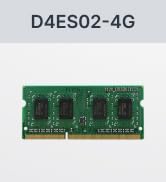
I needed to replace my aging WD NAS, which was struggling to keep up with my needs. After quite a bit of research and product comparisons, I decided to go with the market leader, and bought a NAS that seemed likely to be able to support my needs for several years, and offered some options for expanding the ways I use a NAS. For context, I mainly use my NAS as "network-attached storage": I back up files, and I share files for use on our multiple home computers. I don't use it for remote access (security concern: I'd rather use cloud storage services for that), and I don't use it as a repository for a media server, or anything else like that. I decided to use WD "Red" drives for this unit: based on specs and user and professional reviews, they seemed most likely to run reliably for as long as I needed. My previous experience with WD black, blue, and red drives has been consistently positive, whereas other vendors have let me down. Installation and setup was very easy: I had the unit up and running within a few minutes. Copying files over from my old NAS took some time, but the performance of this Synology unit exceeded my expectations. I was also pleased with how much faster my backup jobs were. I was especially pleased when apps that use network files began running much faster: so clearly both read and write performance were much improved in comparion with the old system. I also set up a USB backup. It took a little bit of reading in the Synology KB to learn how to do it right, but after that it was a breeze. I plugged in a USB hard drive in the back port (the front port can be configured for use with the USB Copy button), opened up the Hyper Backup app, and ran the initial backup to copy the entire NAS contents to the USB drive. Then I scheduled it to run incremental jobs every day, so now my paranoid backup demon is happy. (I save backup drives in a secure location to provide "disaster recovery"; overkill perhaps, but it buys peace of mind.) One criticism: the unit came with only 2GB memory, which seems cheesy. And what makes is super-cheesy is the way they price their branded "compatible memory" at ridiculous multiples of the market price. I was able to buy a 4GB Samsung memory card for under $15, and it worked just fine. You can do a web search and see that others have upgraded using larger memory cards. The Synology KB website is very good: it's well written and comprehensive. There's also an active user community, so there is a ton of information easily available. Overall I'm very happy with my Synology purchase, and would buy their NAS products again without hesitation.
A**R
Synology products are amazing. I upgraded from a 2-bay and this one is just what I needed (just had to add more ram). Excellent build quality, performance and it's very easy to use.
M**M
Otimo produto, perfeitamente como descrito
H**T
I had an old DS414j for a decade, and astonishingly Synology would still deal with support queries. It was time, however, to replace it, so I bought this and have not been disappointed. Setup was a total breeze and its performance is excellent. Given the limited role I have for it, it's basically bored out of its skull most of the time.... but it just works. It's quiet, it's cool (in all senses of the word) and I know it'll be reliable. Brilliant.
ア**郎
DS720+(現DS224+)からの大きな進化は、実はCPUではなくストレージキャッシュの部分です。 旧製品はPCIe2.0 6レーンしかなく、PCIe3.0のNVMe SSDの真価が発揮できない状態でした。 しかし、当製品はPCIe3.0 8レーンであり、2xPCIe3.0x4がフルスピードでるのが最大のポイントです。 特に、10GbE×ストレージキャッシュを搭載した場合のランダムアクセスですが、60~70MB/sが「平均で」出ます。 繰り返します。平均で出ます。 これ、凄い事なんですよ。 ハッキリ言って、シーケンシャルなんてどうでも良いのです。そんなもんほっとけば宜しい。 問題はランダムなんです。特に、画像・写真データが多くいつもランダム限定バトルロワイヤルしていた同志諸君。 この速度の有難みが分かるかと(笑) 10GbEの広い帯域幅とSSDストレージキャッシュのランダムに強い受け皿を持って初めて全てのボトルネックが解消するのです。 しかも、これらのデータのサムネイルキャッシュ作成はまた莫大な時間がかかります。 しかし、PCIe3.0x4フルスピードのストレージキャッシュはこの問題を解決するのです。 ■30万を超える画像ファイルのサムネイルキャッシュ作成 ストレージキャッシュ無し:1ヵ月(絶望)→DS720+(PCIe2.0x2):1週間(喜)→DS723+(PCIe3.0x4):1日(驚愕) これ、本当です。本当なんです。。。 本当にやべぇんだよ、HDDのランダムアクセスって。 ファイルサーバーメインの場合、CPUの動作速度なんてどうでも宜しい。 殆どが、NWとストレージ速度です。NASの性能の多少の前後なんて殆ど影響しません。 何故ならそこがボトルネックだからです。 基本的にその程度の用途であれば、下位機種を買ってください。無駄金です。 というのも、DS723+はCPUの性能が上がった分待機電力も上がりました。 よって、中途半端な用途だと電力コスパ的にマイナスすらあり得ます。 24365稼働の電力コスパを舐めちゃいけません。しっかりと月額に反映されます(笑) ある程度のサーバーを兼務する形でないと元が取れない事請け合いです。 勿論、DS723+は全機種DS720+と比べてCPUが「高性能コア型」になったという大きな違いがあります。 DS720+はモバイル用の省電力高効率型であったので、例えばハイビットレートファイルの取り扱いについては有利です。 ただし、DS720+のCPUであるCeleron J4125にはintel quick sync videoというGPU支援機能があり、DS723+のCPUであるRyzen Embedded R1600にGPU機能はありません。 よって、「CPUでゴリ押しするかGPU支援機能でフォローするか」という違いだけであり、正直電力コスパ的には後者の方が優れています。 DS720+(現DS224+)とDS723+を持っている僕が言うのだから本当です。 しかし、これもストレージキャッシュでゴリ押しできるかで話が変わってくるのです。 ストレージキャッシュ有なら断然DS723+に軍配が上がります。 PCIe2.0x2とPCIe3.0x4では勝負にすらならないからです。 要するにですね、このDS723+は10GbE×ストレージキャッシュを搭載して初めて真価を発揮するマシンです。 言い方を変えましょう。 「10GbEとストレージキャッシュの性能をフルで発揮できるようにしたマシン」 というのがDS723+と理解してもらえれば間違いないと思います。 逆に言えば、それらを搭載しない前程ならマジで下位機種をお勧めします。 そうでもないと、ほぼ変わらないどころか電力効率の面で「悪い」まであります。 低負荷運用は省電力高効率コアの方が断然有利です。 1.5倍近く上昇した「待機電力」がそれを物語っています。 以下の様な方にお勧めです。 ・毎日ランダム限定バトルロワイヤルをしている同志諸君 ・NAS側にある程度の高負荷処理を任せたい人 ・Dokcer愛用者でローカルにAPIサーバーを立てたい開発者 ・CDPがあるのに何故かローカルに重重DBを構築したい猛者 ・意味も無くシーケンシャル番長になりたいベンチマーカ― →ただし家庭用Windows環境下ではその性能を十分に発揮できないとだけ断っておきますが 繰り返しますが、10GbEとストレージキャッシュ大前提なら本当にお勧めです。 ※注意点 ●最大メモリは32GB(ECC)です 現在のコンピューターというのは、CPUにメモリコントローラーがビルドインされています。 即ち、メモリ上限を決めるのはMBでもOSでもありません。CPUです。 また、OSに表記されるメモリ量は「識別表示」であり、「使用可能な量」ではありません。 メモリには、メモリアドレス範囲というものがあり、これがメモリ利用可能な上限となります。 要するに、アドレスが割り振られない領域のデータは(CPUが)利用できません。 メモリのスペック表に掲載されているメモリ上限はこの「アドレス範囲の上限」を示しています。 簡単に言うと無意味です。認識と使えるかは別問題って事です。 付け加えると、アドレス範囲上限を超えて増設すると致命的な不具合が出ます。 メモリが論理的に故障します。これ本当です。 メモリアドレスにはアプリが利用できる所謂ユーザー範囲というものがあります。 ところが、上限を超えて増設すると、稀にアドレス範囲外に書き込んでしまう現象が発生します。 このデータですが、何と消せません。住所不定なのでCPUですらたどり着けないからです。 勿論RAMなので通電が無くなればデータは消えます。 ところが、こういったNASやサーバーは24365稼働なのでリセットが行われず、ゴミデータが溜まり続けます。 そして、最終的には実際のアドレス範囲を侵食し始めます。 この場合ですが、「良くてフリーズ」「最悪メモリが論理的に故障」となります。 この論理的に故障したメモリですが、なんと二度と使えません。 イメージ的には、ファームウェアみたいなものが吹っ飛ぶと思ってください。 メモリはユーザー側から制御できない為、二度と復旧できないという意味合いです。 一言で纏めると「百害あって一利なし」って事です(笑) 当然ですが、これでぶっ壊しても保証は効きません。 上限を超えての増設は絶対に止めましょう。 ●インクルードメモリはECCメモリです ECCメモリと通常のメモリは混合できません。 動作の仕方が違うからです。 混合すると、メモリタイミングがずれてしまい、早くなるどころか遅くなります。 フリーズやアプリケーションエラーも増加します。 間違っても混合させないようにしてください。 ※それ以前にsynology純正のECCメモリ以外動作保証ありませんけどね ●拡張10GbE LANでWoLは利用できません WoLは、UEFI(BIOS)のパワーマネジメントに深くかかわる機能であり、LANドライバとパワーマネジメントが繋がっていないと機能しません。 よくよく考えると当たり前のことです。 拡張10GbEのドライバは、UEFIに読み込まれていませんので、WoLは機能しません。 それをやるにはUEFIのファームウェアを改ざんする必要があり、まぁ普通のメーカーはやらないでしょうね(笑) ●拡張10GbE LANでOS起動前のNW検索やメモリテストもできません 上記に関連する話ですが、UEFI時点でドライバが読み込まれていない為、それらに関する動作が出来ません。 具体的には、メモリテストは不可能です。 というより、NWに繋がっていない為、メモリテスト状況を見る事自体ができないという意味です。 OSセットアップやメモリテストをしたい場合は、標準搭載LANにケーブルを繋ぎ変えてください。
L**I
Comprato per sostituire un vecchio ds 115. Installazione semplice e rapida con prestazioni top.
Trustpilot
3 days ago
1 week ago