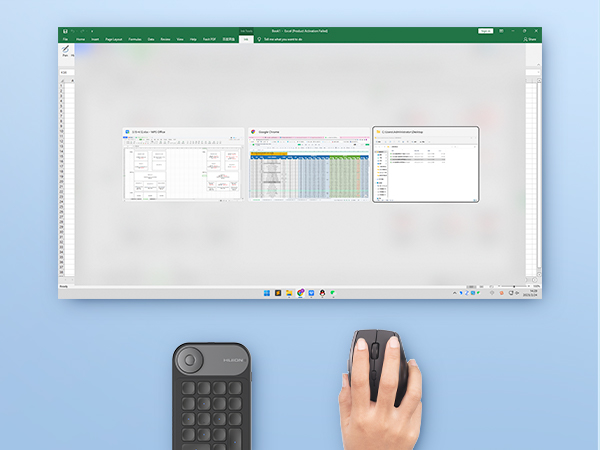
🎯 Unlock your creative flow with the ultimate shortcut sidekick!
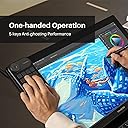
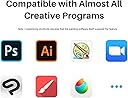
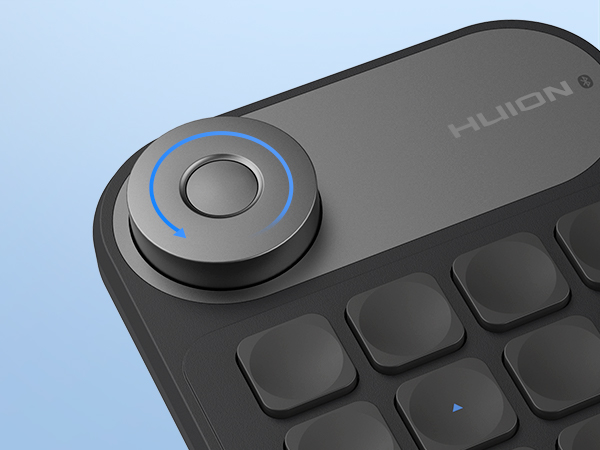
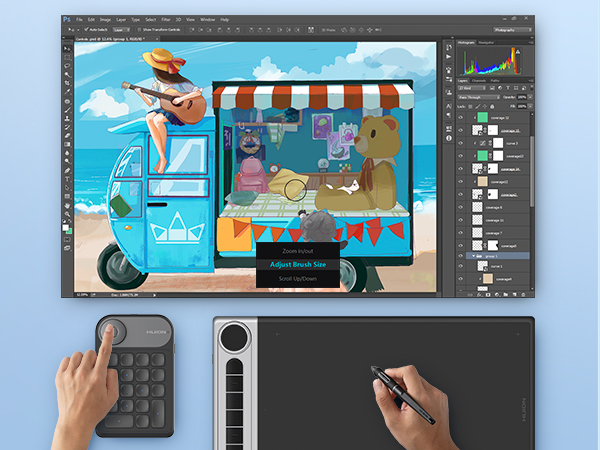
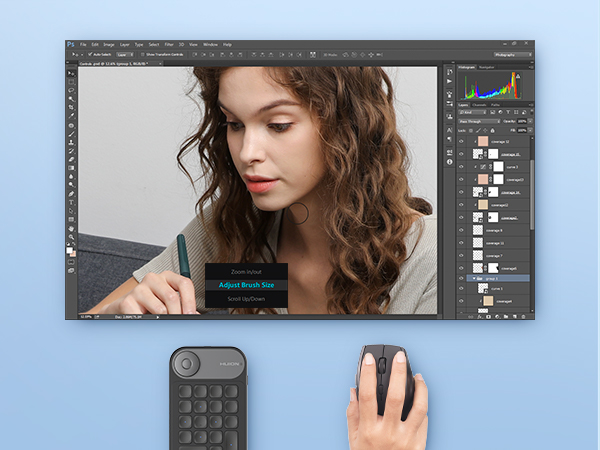
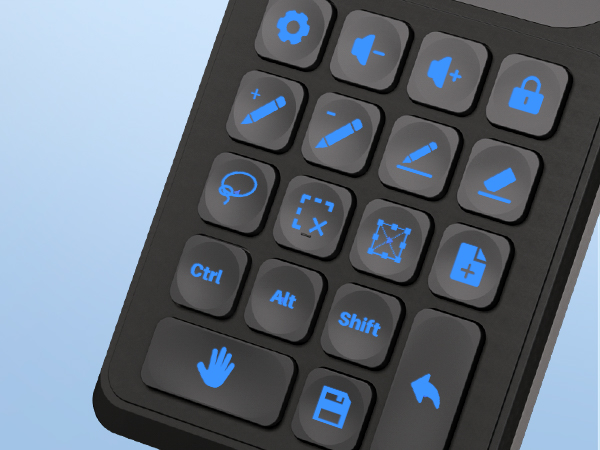
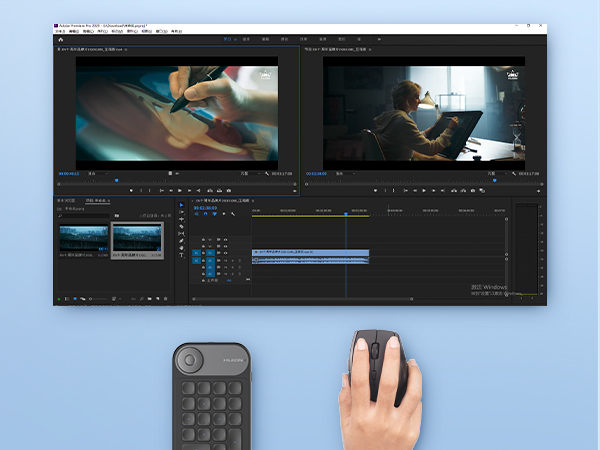
The HUION Keydial Mini is a Bluetooth 5.0 wireless programmable keypad featuring 18 customizable shortcut keys and a multi-function dial, designed for digital artists and professionals. Its anti-ghosting technology supports up to 5 simultaneous key presses, ensuring reliable input. Compatible with Mac, Windows, and major creative software, it offers a compact, ambidextrous design with a 70-hour battery life for all-day productivity on the go.


| ASIN | B0BQJMPYDX |
| Additional Features | 18 Customized Shortcut Keys, 5-Keys Anti-ghosting, Bluetooth 5.0 Connection, One-handed Operation, Programmable Dial |
| Antenna Location | Digital Drawing, Everyday Use, Gaming, Graphic Design, Multimedia, Photo Editing, Programming, Video Editing |
| Best Sellers Rank | #113 in Computer Keyboards |
| Brand | HUION |
| Built-In Media | HUION Keydial Mini Bluetooth Programmable Keypad, Quick Guide, Stickers, USB Cable |
| Button Quantity | 18 |
| Compatible Devices | Drawing Tablets, Laptop, PC |
| Connectivity Technology | Bluetooth, USB-C |
| Customer Reviews | 4.3 out of 5 stars 1,361 Reviews |
| Enclosure Material | Acrylonitrile Butadiene Styrene |
| Generation | 2nd Generation |
| Hand Orientation | Ambidextrous |
| Is Electric | Yes |
| Item Dimensions L x W x H | 5.74"L x 3.65"W x 0.42"H |
| Item Type Name | Computer Graphics Tablet Accessories |
| Item Weight | 0.26 Pounds |
| Keyboard Backlighting Color Support | Single Color |
| Keyboard Description | Digial Painting, Image/Video Editing, Gaming |
| Keyboard Layout | QWERTY |
| Manufacturer | Shenzhen Huion Animation Technology LTD. |
| Mechanical Keyboard Switch Model | Scissor-Switch |
| Model Name | Mini KeyDial |
| Model Number | K20 |
| Number of Batteries Required | 1 |
| Number of Keys | 18 |
| Number of Sections | 1 |
| Power Source | Battery Powered |
| Recommended Uses For Product | Digital Drawing, Everyday Use, Gaming, Graphic Design, Multimedia, Photo Editing, Programming, Video Editing Recommended Uses For Product Digital Drawing, Everyday Use, Gaming, Graphic Design, Multimedia, Photo Editing, Programming, Video Editing See more |
| Series Number | 20 |
| Special Feature | 18 Customized Shortcut Keys, 5-Keys Anti-ghosting, Bluetooth 5.0 Connection, One-handed Operation, Programmable Dial Special Feature 18 Customized Shortcut Keys, 5-Keys Anti-ghosting, Bluetooth 5.0 Connection, One-handed Operation, Programmable Dial See more |
| Style Name | Bluetooth |
| Switch Type | Clicky or Tactile |
| Theme | Drawing, Gaming, Photo Editing, Video Editing |
| Warranty Description | 1 year warranty from the purchase date |
D**A
Pros and Cons ⬇️ I love it!!💕
I am a photographer, I like to work with a stylus pen and my windows surface pro screen comes up and covers the keyboard when I work with the pen as you can see, so this is PERFECT, I can still access shortcuts quickly while I am using my pen. I love it!! And the stickers 😍 wish there were more photoshop icons but this is great! Pros - Easy to set up and program - Connects AUTOMATICALLY to your computer when you turn it on (like 3 seconds) - You can set it up separately for each program you use (including document folders) - Keys are soft and super easy to click(I use my pen to click sometimes) - Color coded stickers make it easy to find keys - Works smoothly, no lag 🙏 - Intuitive experience all around, physically and set up/program wise Cons - Wish it was a bit smaller so I could more easily hold it with one hand for certain situations - Wish it had a couple more photoshop stickers like "crop" and "liquify" Other than that it's lovely and I am super excited about it!
J**3
Great Product
You don't need a Huion adjacent product to use this. This is a great product for its price and functionality in being able to program your own commands along with work with any program. Very affordable and versatile
A**Y
Brutally honest review: Great product with a SEVERE problem that you must know about!! (With Video)
///The video attached to this review is in regard to the problem with this product, shown much farther below in the final 2 paragraphs./// So, I use this product for a couple of things, mostly digital animation and digital painting. If you are using it for those two purposes, this is rather serviceable and you can get a lot of mileage out of it. Ignoring that you can only bind one layout at a time, usually one setup for a program you use frequently like photoshop is all you need. It has definitely streamlined my work process since most of the common bindings I use like B and E, [ and ], and stuff like Ctrl+Z/ Ctrl+Shift+Z are all pretty straightforward and much easier to hit if I'm drawing on my tablet with this thing. If you do something like streaming this product is actually just a top tier godsend of a product because you can actually bind the keys to non buttons and instead opt for opening programs or executing short scripts. Example: You can press a button to open a program like OBS or a video game you play frequently as long as you bind the button to that programs executable file. If you're particularly savvy and determined and can write scripts with AutoHotkey you can essentially just have your entire computer bound on this tiny keypad. Essentially, if you draw a lot like I do, it allows you to disconnect your left hand from the keyboard and have a lot more freedom without having to constantly look over at your keyboard, which is awesome. And if you are a content creator or constantly open and close important programs this thing is absolutely nuts. However, this product does have a bit of a "quirk" that you either need to get used to or it will just piss you off constantly. And, I really do mean CONSTANTLY. I haven't found a fix for it anywhere and I use Huion's most updated driver for both my tablet and this Key dial so its definitely a design flaw/oversight with the actual keypad's design and not the software and drivers themselves. ------------------------------------------------------------------------------------------------------------------ //////So, here's the quirk and what you need to know about this product before spending $50+ on the key dial; it's 2 problems that play off each other in a really annoying way.\\\\\\ ------------------------------------------------------------------------------------------------------------------ 1. [The smaller problem] You can't press 2 keys together to combo them like a normal keyboard. Example: If you want to Ctrl+Z to undo a mistake, you have to set a specific button as Ctrl+Z, you can't have one button be CTRL and another be Z and press them together. So, this limits the keydial a bit but this isn't as big a deal on it's own. Personally, I have CTRL+Z and CTRL+SHIFT+Z on two separate buttons next to each other, so it works out fine. 2. [The extremely annoying problem you NEED to know about] Pressing a key while holding another key will get the key first key "stuck" and constantly input itself as if you were holding the key down on your keyboard. This is just honestly a nightmare and took a lot of muscle memory to get used to. I've come to terms that this might have been intentional for... god only knows why... but I'll try to explain why this is such an annoying problem. Like I said, they are a problem together since using a normal keyboard your entire life you kind of just expect to be able to press two keys at the same time which is an absolutely no-no for this product. So, scenario. Lets say I have a key like CTRL or ALT bound to they keydial. CTRL or ALT do a lot of modifying in programs like photoshop, especially when you are trying to use a tool. Pretty much an essential as hell key along with Shift. If I'm working quickly and just happen to be holding down the CTRL bind the same time I hit a different button without thinking about it, you completely just ruin your workflow for a moment. It's really disorientating to be working on a drawing, just for the tablet to stop drawing because CTRL is permanently being held down and pressed. Even worse is when you go to hit a tool shortcut on your actual keyboard and god only knows what happens because key number whatever the F you just pressed is constantly inputting itself and photoshop keeps trying to press both of them together. I've seriously had entire projects get formatted improperly or had to spend a few minutes changing photoshops layout back to normal because having a modifying key held down is such a disaster. This is already annoying on it's own BUT YOU CAN ONLY "FIX" THE PROBLEM BY HITTING THE ORIGINAL KEY YOU MESSED UP WITH IN THE FIRST PLACE ON THE KEYDIAL. So, if you're getting used to the binds you made now you have to figure out which button you accidentally pressed until you finally re-press it. You can't hit whatever it's pressing on your actual keyboard, you have to actually go back and re-find the keydial bind you made and re-press it. If you use this product as much as I do, you start to be able to immediately recognize when it's doing this and I can quickly fix the problem now, but the fact that it's still happening to me several dozens/hundreds of hours in is a testament to how terrible of a design flaw it is. In the video I've attached to this review I tried to give an easy to understand example of how this problem works and how annoying it is. I don't use this keydial for gaming, as you can tell by the rest of the review, but for a visual sake I thought it was appropriate. I bound the keydial to W, A, S, and D for movement in this game. You'll notice that if I press the keys individually, they work as intended, but as soon as I hold down my binding for moving left (A in this case) and press another key, the keybind permanently holds down the left movement bind (A). The only way to fix the problem as seen in the video is having to re-press the original binding that is causing the problem. It's annoying, and it can be a total disaster when using creative software and having ALT or CTRL being permanently pressed down and causes a bunch of problems before you realize what's going on and daddy photoshop has his way with your project and layout. Still, it's a great product even with the quirk. I DO recommend using it, it's just you really do need to know how annoying it is to get used to the design oversight before committing to this keydial.
B**A
Fantastic product for workflow optimization
I have a few notes about quirks/things that I wish were different, but I wanted to start by saying that I love this thing and it has drastically improved my workflow, such that I rarely touch my keyboard anymore. As a note, I only use the key dial for Adobe After Effects since that’s where I spend 98% of my time, but I’m sure it works great for other programs as well and I like that the keys can be set up to change based on which program is active! Also, the battery life is crazy good. Thank you Huion! In case anyone is interested, I’ve included a photo of how I have mine set up for Ae. I would highly recommend this to anyone who is on the fence about it. A few notes/quirks: - I love that you can set the dial for up to 3 different functions and easily switch between them and also that if you only have 1 or 2 functions set up, it doesn’t make you switch through a blank function. BUT! It is a *slight* inconvenience that you have to wait for the on-screen-display to clear off before you can start using the selected function. Because of that, I rarely if ever switch functions (which really isn’t a big deal because my other hand is always on my mouse, which has a scroll wheel). Also, I wish you could swap the scroll direction, but that’s not a deal breaker. - The keys can be set up as modifier keys (CTRL/ALT/SHIFT/etc) which is nice and those seem to work well with the keyboard and mouse for the most part, but have some weird behaviors with the other keys on the key dial. Certain keys only seem to work with other keys on the keydial, but it seems really inconsistent. For example, I have the large lower-right key set up as ALT which works to modify the first key on the second row but not the 3rd key on the second row. There are also a few keys that have a really subtle mark on them (either a dot or an arrow) and those keys never seem to work in combination with each other. As before, this isn’t a deal-breaker, but it is a slight inconvenience. - When using a modifier key with another function, if you release the function first everything continues as expected. If you release the modifier key first, it seems to lock that key down. For example, when I’m using alt+wheel, if I accidentally release the alt key first my computer acts as though the alt key is still pressed. This happens with other peripherals as well, so it’s not an issue with Huion, just something to note if you pick this thing up (which you should)
K**Z
WORKS GREAT For WACOMS! Can be BLUETOOTH and WIRE CONNECTED! Scroll Dial Offers 3 Hotkey Mode!
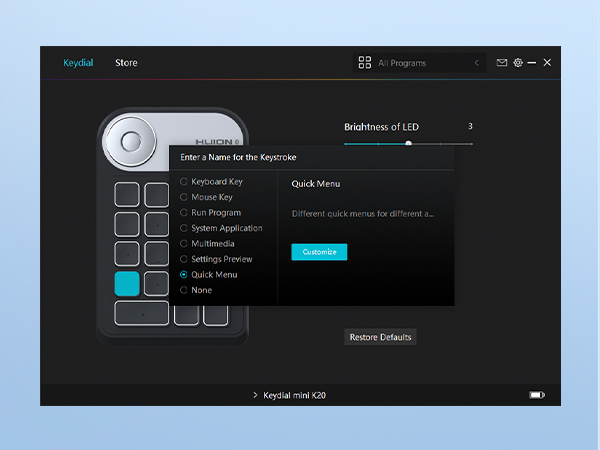
I know my headline is kinda crazy sounding (and a little AI-ish,) but I AM a real (very excited) person, and I'm SO thrilled with this little hotkey pad. XD I just wanted to put answers to questions I couldn't find answers to in my headline, just in case it's helpful to others lol! I've also tried to leave a comprehensive but concise thoughts on my experience with the keypad for any fellow visual artists (especially those using larger-scale drawing tablets) WHY I NEEDED IT I currently use a WACOM Cintiq 22" (without "touch" capabilities), and trying to access my hot keys on my desktop keyboard was a nightmare. It made it uncomfortable, and deterred me from drawing. I found this little guy with a lot of great reviews, and had also heard enough positive buzz about Huion over the years that I gave it a try. It took a while to arrive, so just be ready for a wait. However, once it DID arrive, it has blown all of my hopes and expectations out of the water. FIRST IMPRESSIONS - Battery was already 90% charged - Downloading the driver was very easy and fast - Setting up the hot keys was incredibly easy and flexible - It comes with 2 sets of sticker labels so you can keep track of your hot keys - It has nice little rubber grips on the bottom so it doesn't slide all over the screen - It comes with a nice 3-ish foot USB cable so you don't HAVE to use bluetooth if you don't have it. I also think the cable is long enough that it doesn't get TOO in the way when you're drawing, either. MY FAV ASPECTS (So Far) 1. I LOVE that the dial lets you set THREE different hot key settings simultaneously. I currently use "zoom in/out" and "canvas rotate". All you have to do is click the little button in the middle of the dial to switch between your desired "hot key mode". It's beyond convenient and comfortable for my hand. 2. Super big fan of the bluetooth and wire connect options, and how the wire is long enough that it wont really impede your ability to draw or strain the connection. 3. It's very light, and comfortable to use. While it has nice rubber grips, they aren't "too much" so you're not smudging your screen, but as long as your hand is on the device, it isn't sliding everywhere, either. 4. Set up was incredibly straightforward and easy, and I loved how it offered program-specific key menus (like Clip Studio Paint and Photoshop). FINAL THOUGHTS I know it's just a hot key pad, but it has totally changed my workflow, and I'm much more excited and motivated to draw because I'm way more comfortable and efficient. I'm really impressed with the extra details like the stickers and USB cable that improve the user experience. I'm also really impressed that it functions SO seamlessly with my Wacom. A part of me had really worried that it WOULDN'T work so great since HUION sells their OWN line of drawing tablets--but it's working great. I've only been using it for a few days, so if it suddenly stops working or something, I'll update my review then. But, for fellow visual artists looking for a simple but effective hot key pad to make work more comfortable and efficient, I am REALLY pleased with the purchase, and highly recommend. ^_^
S**H
great, just not for me
I got this as part of a bundle with a Kamvas 22 plus, and I was curious to see how it handled. Im left-handed and have a hard time with built in tablet shortcuts because of how I have to flip the tablet in order to draw comfortably (thats hy I got the 22 plus in the first place: it has no buttons built in so i dont need to flip it upside down). It was a bit difficult to figure out how to connect (you have to pair it to your pc first for it to be recognized through bluetooth). It works as described and would be awesome for people who like it, but I found it a bit clunky to manage in my right hand while drawing so I ended up giving it to a right-handed friend who has had a much better time using it. The wheel part is awesome though and very intuitive to use to scroll! The buttons are nice, and I think it's a super worthwile and handy tool, its just not for me
L**U
Started Rough, but Excellent Customer Support Made the Difference (UPDATED)
I bought this about six months ago. At first, it worked really well, but after some time it started having issues. The scroll wheel began glitching when zooming in/out or scrolling, which made it very frustrating to use and affected my workflow. Update: After I posted my review, Customer Support reached out to get more details about my issue. They quickly identified that the problem was caused by a broken button and offered to replace the device with a new one. I really appreciate how responsive and helpful they were. I genuinely like this product, and I’m very pleased that my workflow is smooth again thanks to their support. Great customer service made all the difference.
M**T
For the newer K40, not worth it. K20 not bad, but the dial will die in about a year of use.
(edit): Okay so ivve had the K20 since June of 2024 and the dial went bad but the buttons still worked. Was plagued however by the drivers always failing to detect the keypad. the driver never give me issues with my Kamvas 24 but my god do they hate the keypad. So dealing with that for a while I think man I'll upgrade Ill get the newer one. ans so I get it over the holidays as a gift. Firstly the rubber backing for grip is very slick and does little to grip my desk. Secondly this one still suffers from the drivers refusing to detect it. and it doesnt matter how many digital buttons it has, they will be the default binds if the drivers dont detect it because it has no onboard memory. none at all how in this modern age are there still customizable peripherals with no onboard memory? Like I wounlt care so much if there drivers EVER detected it firrst try but it doesnt. Thirdly this one has come with a new issue the K20 didnt have, which is it regularly provides false imputs. either keeping the last imput it was given for a second or two or outright ignoring the most recent imput. wich if youre using a program with toolshift like I am is a nightmare. Fourthly. the ergonomics just doesnt do it for me. I find the K20 easier to use. and on that, * programable buttons at a time is simply not enough. My workspace doesnt provide enough room for my drawing setup and an easily accessed keyboard. so I try to use binds as best I can to prevent me from having to awkwardly try tp scoot a keyboard out to use binds. and the fact it takes a secodn to switch bettween digital button sets is just agrivating for my workflow. Pros: the made it easier to actually set your binds the dials feel nice and accurate the buttons it does have, each have little tactile feature to differintiate them without looking. Conclusion. don't. just dont get this one. go with a different brand for your macros. make sure if it is also driver dependant it wont conflict with your device or program. Really let down by this.
Trustpilot
3 weeks ago
1 month ago